
1. Utangulizi
Thank you for choosing the ieGeek 5MP Outdoor Wi-Fi Security Camera. This manual provides essential information for the proper installation, operation, and maintenance of your camera. Please read these instructions carefully before use and retain them for future reference. This camera is designed to provide reliable outdoor surveillance with advanced features for enhanced security.
2. Bidhaa Imeishaview
The ieGeek 5MP Outdoor Wi-Fi Security Camera offers high-definition monitoring with flexible connectivity and smart detection capabilities.
Sifa Muhimu:
- Azimio la HD la 5MP: Provides clear and vivid images and videos with 2880x1600 resolution and 4x digital zoom.
- Dual-Band Wi-Fi (2.4/5 GHz): Supports both 2.4 GHz and 5 GHz Wi-Fi for stable and faster network connection.
- 360° PTZ Monitoring: Pan (355° horizontal) and Tilt (120° vertical) functionality allows for comprehensive area coverage.
- Maono ya Usiku ya Rangi: Three night vision modes (color, infrared, smart) with a range of up to 15 meters (50 feet).
- PIR Humanoid Detection: Advanced human detection reduces false alarms caused by non-human movements.
- Kengele ya Sauti na Mwanga: Deters intruders with customizable sound and light alerts.
- Kurekodi Kuendelea 24/7: Supports continuous recording and event-based recording.
- Hifadhi ya Ndani na Wingu: Compatible with Micro SD cards (up to 128GB, not included) and cloud storage options.
- Kushiriki kwa Watumiaji Wengi: Share camera access with family members via the dedicated app.
- Upinzani wa Hali ya Hewa wa IP65: Imeundwa kwa matumizi ya nje, sugu kwa vumbi na maji.
Vipengele vya Kamera:
The camera unit typically includes the main camera body, dual Wi-Fi antennas, a power input port, and a Micro SD card slot.
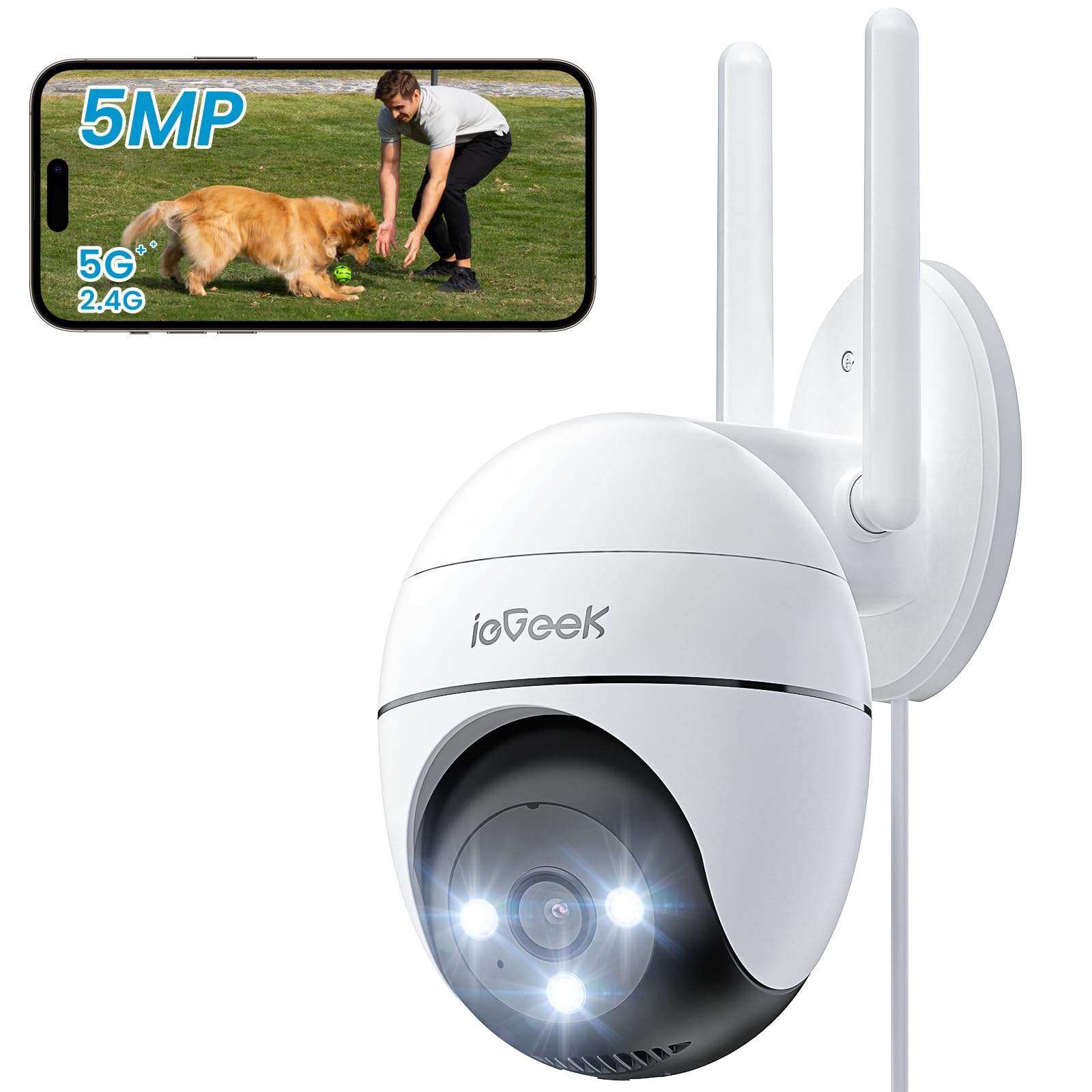
Figure 2.1: ieGeek 5MP Outdoor Wi-Fi Security Camera (Model ZS-GQ4)

Kielelezo 2.2: Zaidiview of ieGeek 5MP Camera Features including PTZ, 24/7 recording, 2-way audio, humanoid tracking, Alexa compatibility, local and cloud storage, multi-user sharing, customizable alert areas, AI detection, and acoustic/light alarms.

Figure 2.3: The camera features a 5dBi antenna for improved Wi-Fi signal strength and stability.
3. Maagizo ya Kuweka
3.1 Yaliyomo kwenye Kifurushi
- ieGeek 5MP Outdoor Wi-Fi Security Camera
- Adapta ya Nguvu
- Kuweka Screw na Nanga
- Mwongozo wa Mtumiaji
3.2 Upakuaji wa Programu na Usajili wa Akaunti
- Pakua yaani Geek Cam or CloudEdge app from your smartphone's app store (iOS/Android).
- Register for an account using your email address and create a secure password.
3.3 Muunganisho wa Kamera
- Power on the camera by connecting it to a power outlet using the provided adapter.
- Open the ieGeek Cam/CloudEdge app and tap the "+" icon to add a new device.
- Follow the on-screen instructions to connect the camera to your 2.4 GHz or 5 GHz Wi-Fi network. Ensure your phone is connected to the same Wi-Fi network during setup.
- Changanua msimbo wa QR unaoonyeshwa kwenye simu yako kwa kutumia lenzi ya kamera unapoombwa.
- Ukishaunganishwa, unaweza kuipa kamera yako jina na kuanza kuishi viewing.

Figure 3.1: Connecting the power adapter to the camera.
3.4 Ufungaji wa Kimwili
- Choose a suitable outdoor location with a clear view and strong Wi-Fi signal.
- Use the provided mounting template to mark drill holes.
- Drill holes, insert anchors, and secure the camera base with screws.
- Rekebisha pembe ya kamera inavyohitajika.

Figure 3.2: Ensure optimal Wi-Fi signal strength at the chosen installation location for stable performance.
4. Maagizo ya Uendeshaji
4.1 Ishi View na Udhibiti wa PTZ
- Open the ieGeek Cam/CloudEdge app and select your camera to view malisho ya moja kwa moja.
- Use the on-screen joystick or swipe gestures to control the camera's pan (horizontal 355°) and tilt (vertical 120°) movements.

Figure 4.1: Control the camera's 355° horizontal and 120° vertical rotation directly from your smartphone app.
4.2 Njia za Maono ya Usiku
Kamera hutoa njia tatu za kuona usiku:
- Maono ya Usiku ya Rangi: Utilizes built-in spotlights to provide full-color images in low-light conditions.
- Maono ya Usiku ya Infrared: Uses infrared LEDs for black and white images in complete darkness.
- Maono Mahiri ya Usiku: Automatically switches between infrared and color night vision upon detection of motion.
4.3 Ugunduzi wa Mwendo na Kengele
- PIR Humanoid Detection: Configure sensitivity levels in the app to minimize false alarms.
- Maeneo Yanayoweza Kutambulika: Set specific areas for motion detection to focus on critical zones.
- Kengele ya Sauti na Mwanga: When motion is detected, the camera can activate a siren and/or spotlights to deter intruders. You can choose between silent, spotlight only, siren only, or both siren and spotlight modes.

Figure 4.2: Select from silent, spotlight only, siren only, or both siren and spotlight alarm modes to suit your security needs.

Figure 4.3: The camera's humanoid motion tracking follows detected human figures, reducing false alarms from other movements.

Figure 4.4: AI smart monitoring can differentiate between various detection types such as people, animals, packages, and vehicles (some features may require a subscription).
4.4 Kurekodi na Kuhifadhi
- Kuendelea Kurekodi: The camera supports 24/7 continuous recording to a Micro SD card (not included).
- Kurekodi Tukio: Rekodi klipu za video wakati mwendo unagunduliwa.
- Kadi ya SD ya Micro: Ingiza kadi ya Micro SD (hadi 128GB) kwenye nafasi iliyotengwa kwa ajili ya hifadhi ya ndani.
- Hifadhi ya Wingu: Optional cloud storage plans are available through the app for secure off-site backup.

Figure 4.5: The camera supports 24/7 continuous recording, ensuring constant surveillance.
5. Matengenezo
5.1 Kusafisha Kamera
- Hakikisha kuwa kamera imezimwa kabla ya kusafisha.
- Tumia laini, damp kitambaa cha kuifuta mwili wa kamera.
- Kwa lenzi, tumia kitambaa maalum cha kusafisha lenzi ili kuepuka mikwaruzo. Usitumie kemikali kali au visafishaji vya kukwaruza.
5.2 Mazingatio ya Mazingira
- The camera has an IP65 weather resistance rating, making it suitable for outdoor use in various weather conditions.
- Kiwango cha joto cha uendeshaji: -20°C hadi 50°C (-4°F hadi 122°F).

Figure 5.1: The camera is designed with IP65 weather resistance to withstand outdoor elements like rain.

Figure 5.2: The camera operates effectively within a wide temperature range of -20°C to 50°C.
6. Utatuzi wa shida
If you encounter issues with your ieGeek camera, please refer to the following common troubleshooting steps:
6.1 Masuala ya Muunganisho
- Kamera Nje ya Mtandao: Ensure the camera is powered on and within range of your Wi-Fi router. Check your Wi-Fi signal strength in the app. Try restarting the camera and your router.
- Imeshindwa Kuunganisha kwenye Wi-Fi: Verify your Wi-Fi password is correct. Ensure you are connecting to a 2.4 GHz or 5 GHz network as supported. If using a dual-band router, ensure the camera is connecting to the correct band.
6.2 Motion Detection Problems
- Kengele Nyingi Sana za Uongo: Adjust the PIR detection sensitivity in the app. Define specific detection zones to exclude areas with frequent irrelevant movements (e.g., trees swaying).
- Hakuna Ugunduzi wa Mwendo: Ensure motion detection is enabled in the app settings. Check the camera's field of view for obstructions. Increase detection sensitivity if necessary.
6.3 Masuala ya Ubora wa Picha
- Picha yenye Ukungu: Clean the camera lens carefully. Ensure there is no condensation on the lens.
- Maono Mabaya ya Usiku: Ensure the night vision mode is set correctly (color, infrared, or smart). Check for any obstructions blocking the infrared LEDs or spotlights.
6.4 Masuala Mengine
- Kadi ya SD Hairekodiwi: Ensure the Micro SD card is inserted correctly and is not full. Format the SD card via the app if it's a new card or if issues persist.
- Programu Haijibu: Close and restart the app. Ensure your smartphone's operating system is up to date.
If these steps do not resolve your issue, please contact ieGeek customer support for further assistance.
7. Vipimo
| Mfano | ZS-GQ4 |
| Azimio | MP 5 (2880 x 1600) |
| Lenzi | 3.6 mm |
| Zoom ya dijiti | 4x |
| Umbali wa Maono ya Usiku | Hadi mita 15 (futi 50) |
| Muunganisho wa Wi-Fi | 2.4 GHz / 5 GHz Dual-Band |
| Safu ya Kugeuza/kuinamisha | Panda 355°, Tilt 120° |
| Chaguzi za Hifadhi | Kadi Ndogo ya SD (hadi 128GB, haijajumuishwa), Hifadhi ya Wingu |
| Upinzani wa hali ya hewa | IP65 |
| Joto la Uendeshaji | -20°C hadi 50°C (-4°F hadi 122°F) |
| Vipimo | 17 x 9 x 10 cm |
| Njia ya Kudhibiti | Mobile App (ieGeek Cam / CloudEdge) |
| Aina ya Alamu | PIR Humanoid Motion Detection, Sound & Light Alarm |
8. Udhamini na Msaada
ieGeek is committed to providing high-quality products and excellent customer service.
8.1 Taarifa ya Udhamini
- Udhamini wa Mwaka 2: Your ieGeek camera is covered by a 2-year warranty from the date of purchase, protecting against manufacturing defects.
- Dhamana ya Siku 30 ya Kurejeshewa Pesa: If you are not satisfied with your purchase, you may return the product for a full refund within 30 days.

Figure 8.1: ieGeek offers a 2-year warranty and a 30-day money-back guarantee, along with lifetime support.
8.2 Usaidizi kwa Wateja
For any questions, technical assistance, or warranty claims, please contact ieGeek customer support. Refer to the contact information provided with your product packaging or visit the official ieGeek webtovuti kwa maelezo ya usaidizi.
- Msaada mkondoni: Tembelea www.iegeek.com/support (mfanoample link, please refer to actual webtovuti)
- Barua pepe ya Usaidizi: support@iegeek.com (mfanoample email, please refer to actual contact)
- Usaidizi wa Kiufundi wa Maisha: ieGeek provides lifetime technical support for its products.