
Utangulizi
This instruction manual provides detailed guidance for the setup, operation, and maintenance of your OIVO PS5/Slim/Pro Console Stand and Cooling Station. This multifunctional accessory is designed to enhance your gaming experience by providing efficient cooling, convenient controller charging, and organized storage for your PlayStation 5 console and accessories. It is compatible with all PlayStation 5 console versions, including the original PS5 (Disc and Digital Editions), the 2023 PS5 Slim (CFI-2000A01, CFI-2000B01), and the PS5 Pro (CFI-7019B01X).
Yaliyomo kwenye Kifurushi
- 1 x OIVO PS5 Stand with Type-C Cable
- 1 x Customized Panel for PS5 Slim & Pro
- 1 x Customized Panel for PS5 Original
- 1 x Kishikilia Kishika Sauti
- 1 x Fixed Screw
- 1 x Mwongozo wa Mtumiaji (hati hii)
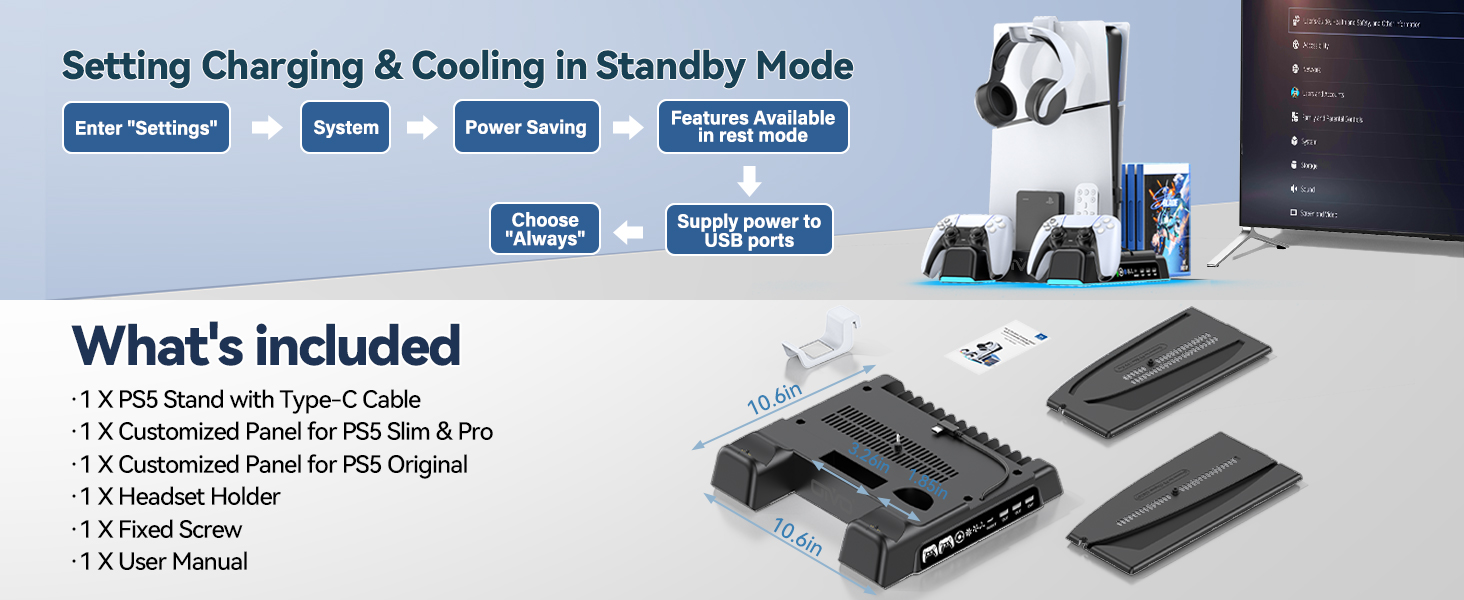
Image: All components included in the OIVO PS5 Stand package.
Bidhaa Imeishaview
The OIVO PS5 Stand and Cooling Station is a comprehensive accessory designed to optimize your PlayStation 5 setup. It features a robust cooling system, dual high-speed controller charging docks, multiple USB ports for additional accessories, and integrated storage solutions.
Sifa Muhimu:
- Utangamano wa Universal: Supports PS5 Disc, PS5 Digital, PS5 Slim, and PS5 Pro consoles.
- Upoezaji Ufanisi: Features a powerful 1.63-inch enlarged turbofan with 3 adjustable speed levels (High, Medium, Low) to prevent console overheating.
- Dual Controller Charging: Two dedicated charging docks for PS5 DualSense controllers, capable of fully charging two controllers simultaneously in under 2 hours. LED indicators show charging status (Red for charging, Green for fully charged/standby).
- Kitovu cha USB Kilichounganishwa: Includes 4 built-in USB ports (3 USB-A, 1 USB-C In/Out) for charging additional devices and data transmission.
- Hifadhi Iliyopangwa: Dedicated slots for up to 14 game discs, a headset holder, and a media remote/hard drive storage area.
- Ulinzi wa Usalama: Built-in safeguards against overcharging, overheating, overvoltage, na mzunguko mfupi.
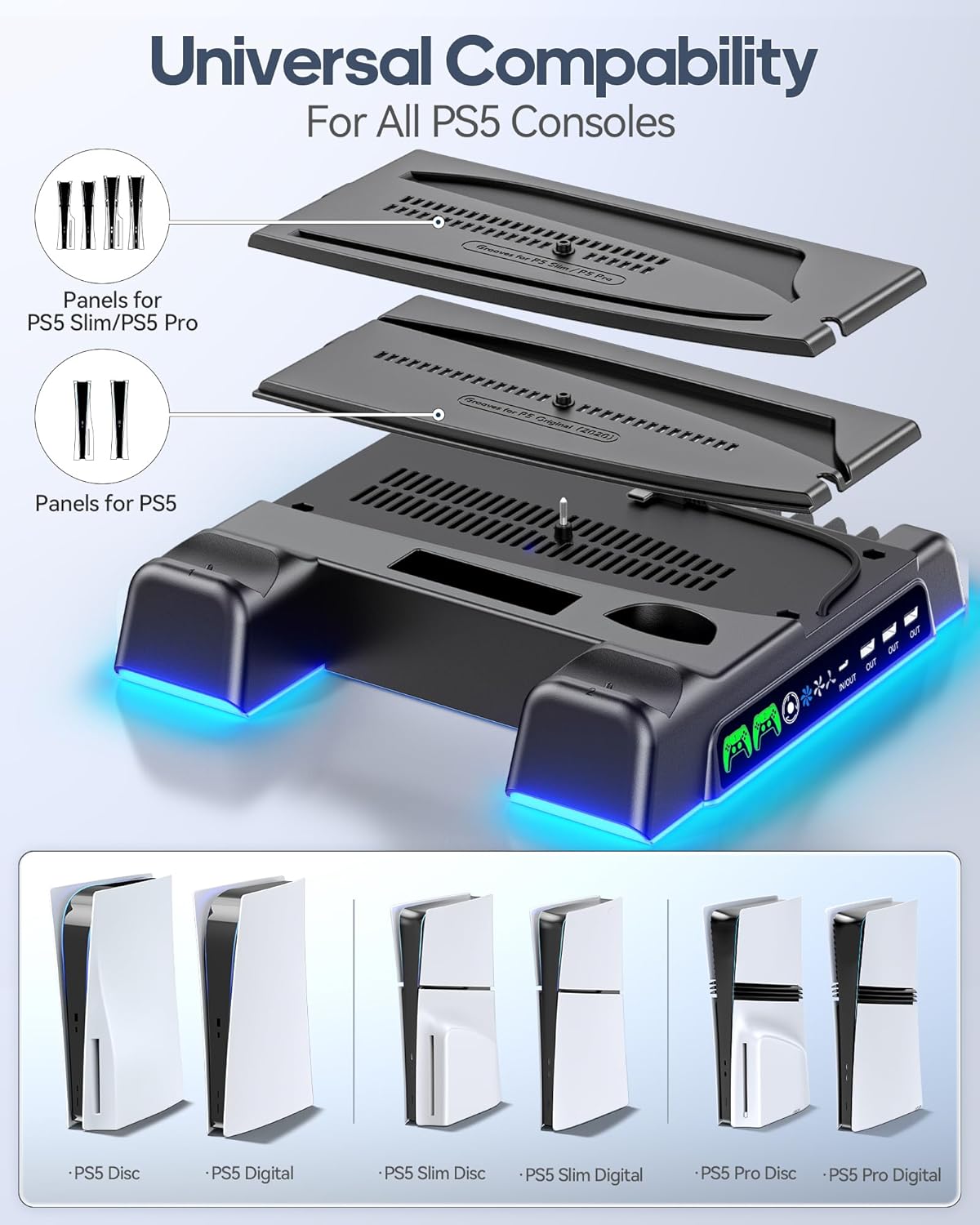
Image: Universal compatibility of the stand with different PS5 console versions, including panels for PS5 Slim/Pro and original PS5.
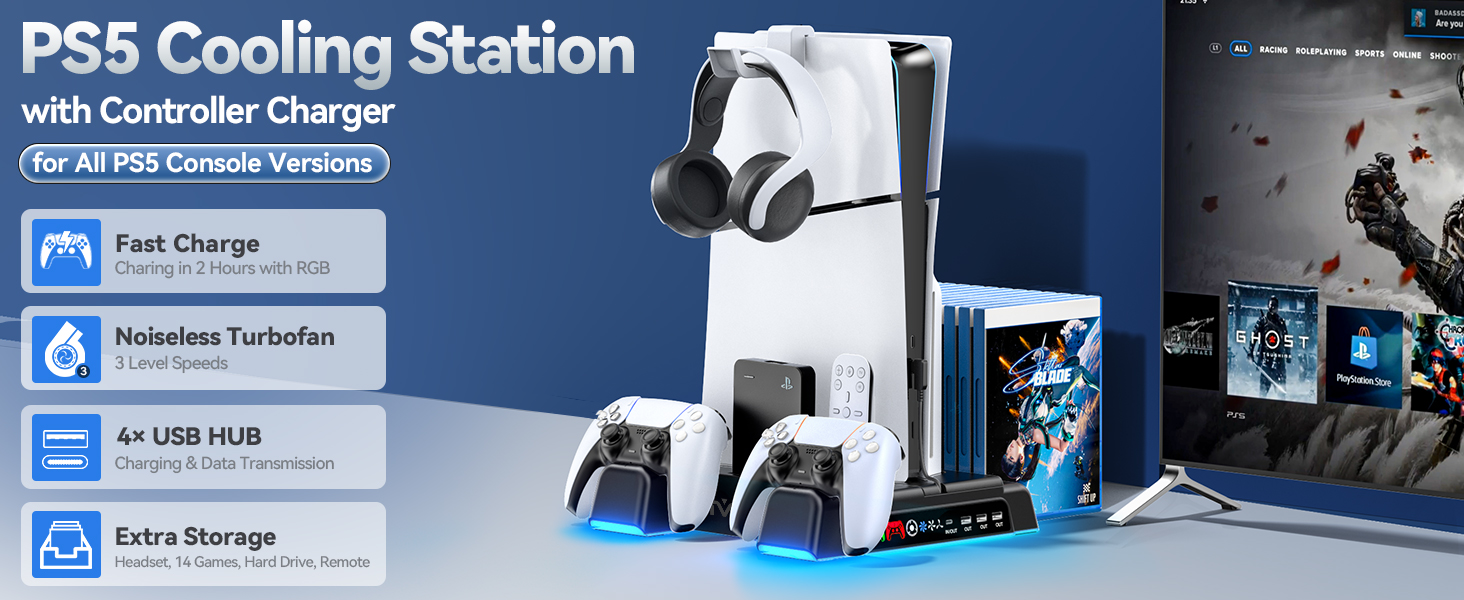
Picha: Juuview of the PS5 Cooling Station highlighting its key features such as fast charging, turbofan, USB hub, and storage.
Maagizo ya Kuweka
Follow these steps to correctly set up your OIVO PS5 Stand and Cooling Station:
- Select the Correct Panel: Identify your PS5 console version (Original, Slim, or Pro). Choose the corresponding customized panel from the package. The stand includes separate panels for the original PS5 and for the PS5 Slim/Pro models.
- Place the PS5 Console: Carefully align your PS5 console with the chosen panel on the cooling station. Ensure it sits securely in the vertical position.
- Linda Console: Use the provided fixed screw to firmly attach the PS5 console to the base of the stand. This ensures stability and prevents accidental tipping.
- Unganisha Nguvu: Connect the included Type-C cable from the stand to the front USB-C port of your PS5 console. This powers the cooling fan and charging functions.
- Attach Headset Holder: If desired, attach the headset holder to the designated slot on the console stand.
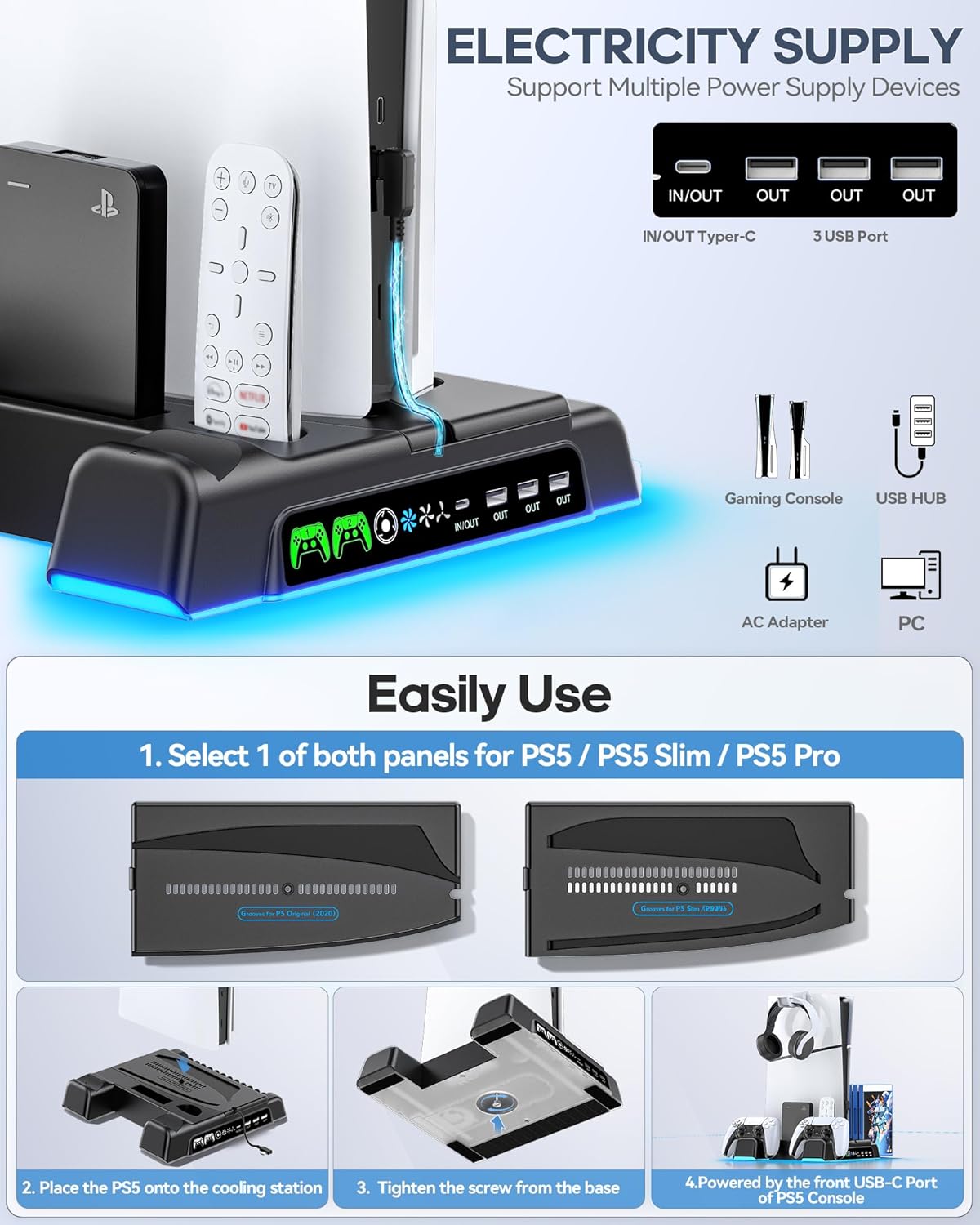
Image: Step-by-step guide for setting up the OIVO PS5 Stand, illustrating panel selection, console placement, securing with a screw, and connecting to the PS5's front USB-C port.
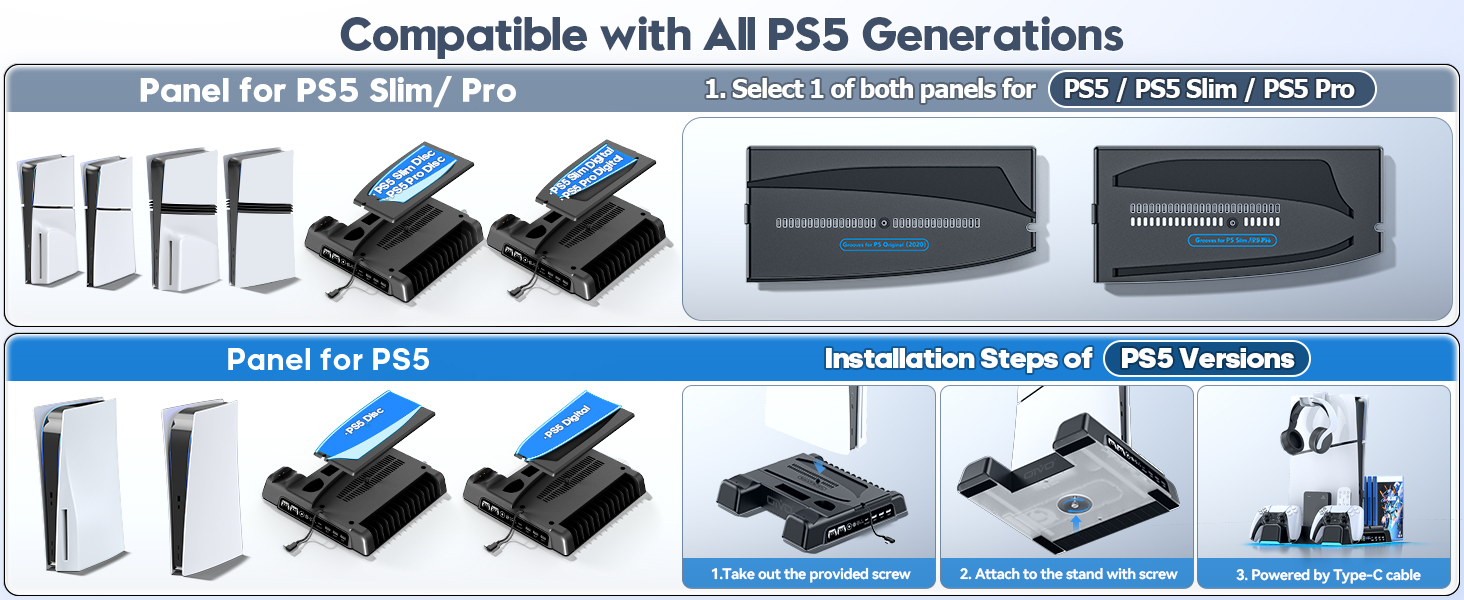
Image: Visual guide for installing the PS5 console onto the stand, demonstrating the use of specific panels for original PS5 and PS5 Slim/Pro models.
Maagizo ya Uendeshaji
Kuchaji Kidhibiti:
Place your PS5 DualSense controllers into the designated charging docks. The LED indicators will illuminate red to signify charging and turn green when fully charged or in standby mode. Charging takes approximately 2 hours for a full charge.
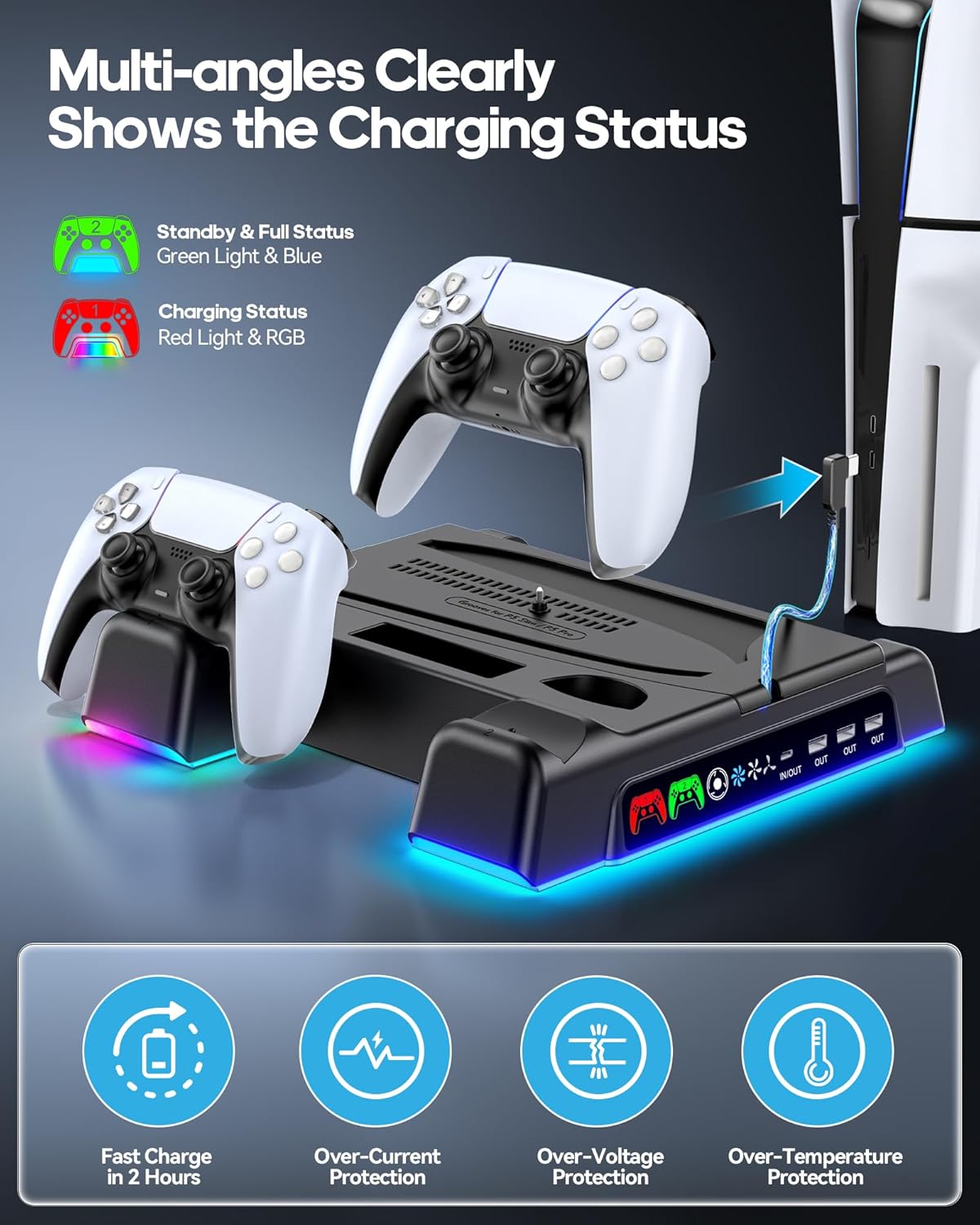
Image: Controllers placed in the charging docks, with LED indicators showing charging status and icons for various safety protections.
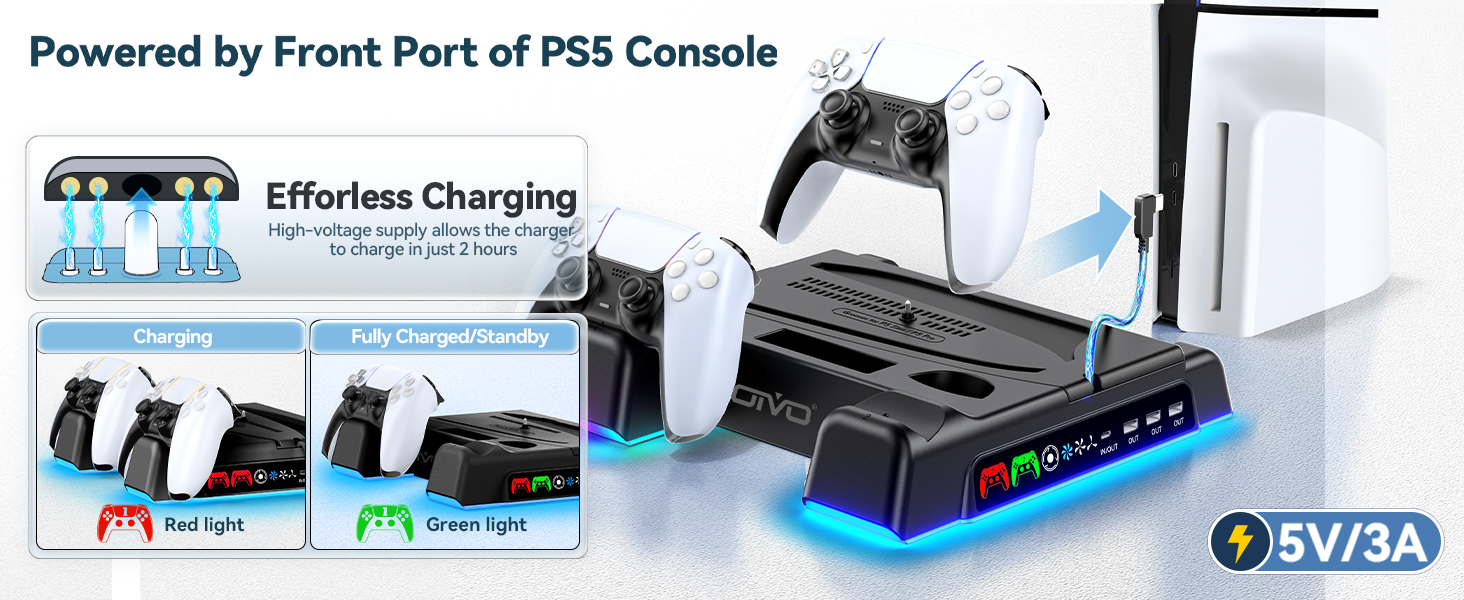
Image: Visual representation of controller charging status with red and green LED lights.
Cooling Fan Operation:
The cooling fan features three adjustable speed levels. Use the touch control button on the front of the stand to cycle through High, Medium, and Low speeds, or to turn the fan off. The fan operates quietly to minimize distraction during gameplay.
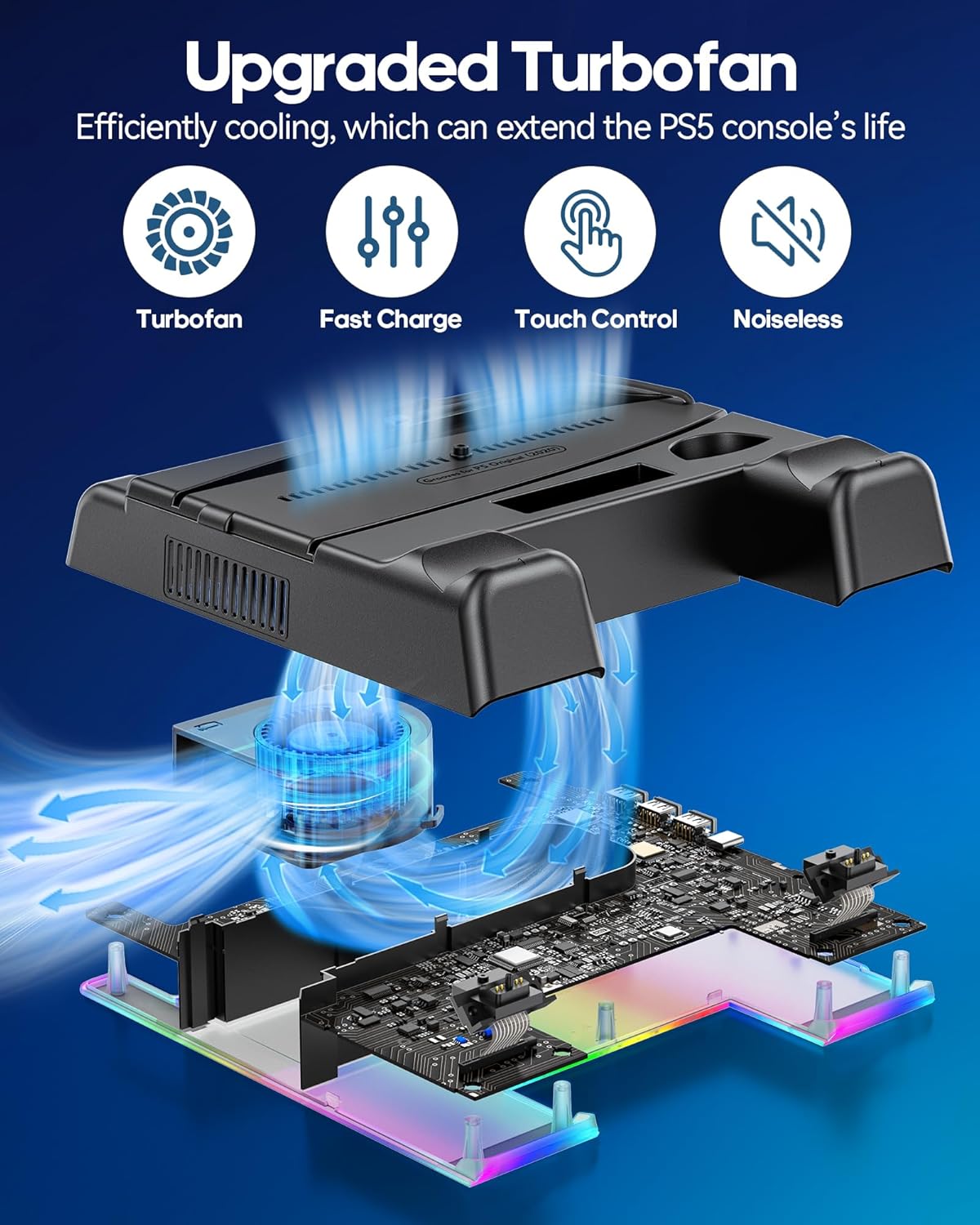
Picha: Ndani view of the turbofan and its cooling effect on the PS5 console, highlighting its quiet and efficient operation.
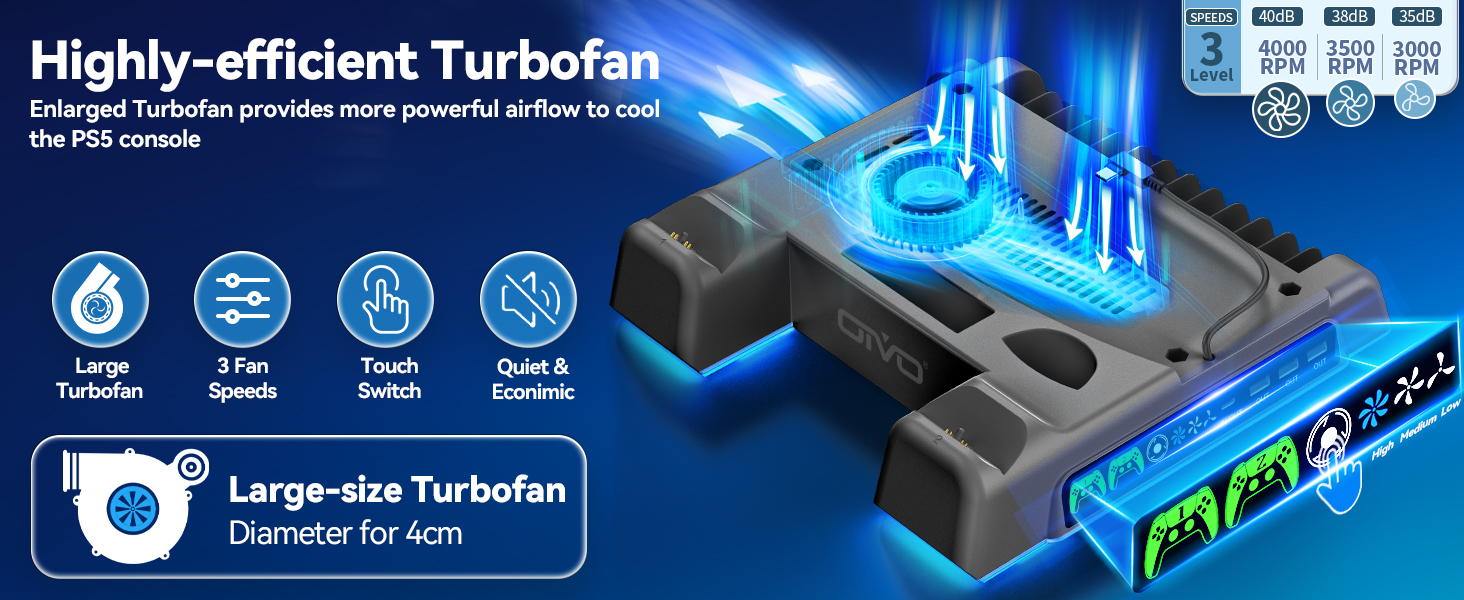
Image: Close-up of the turbofan and its specifications, including fan speeds and touch control interface.
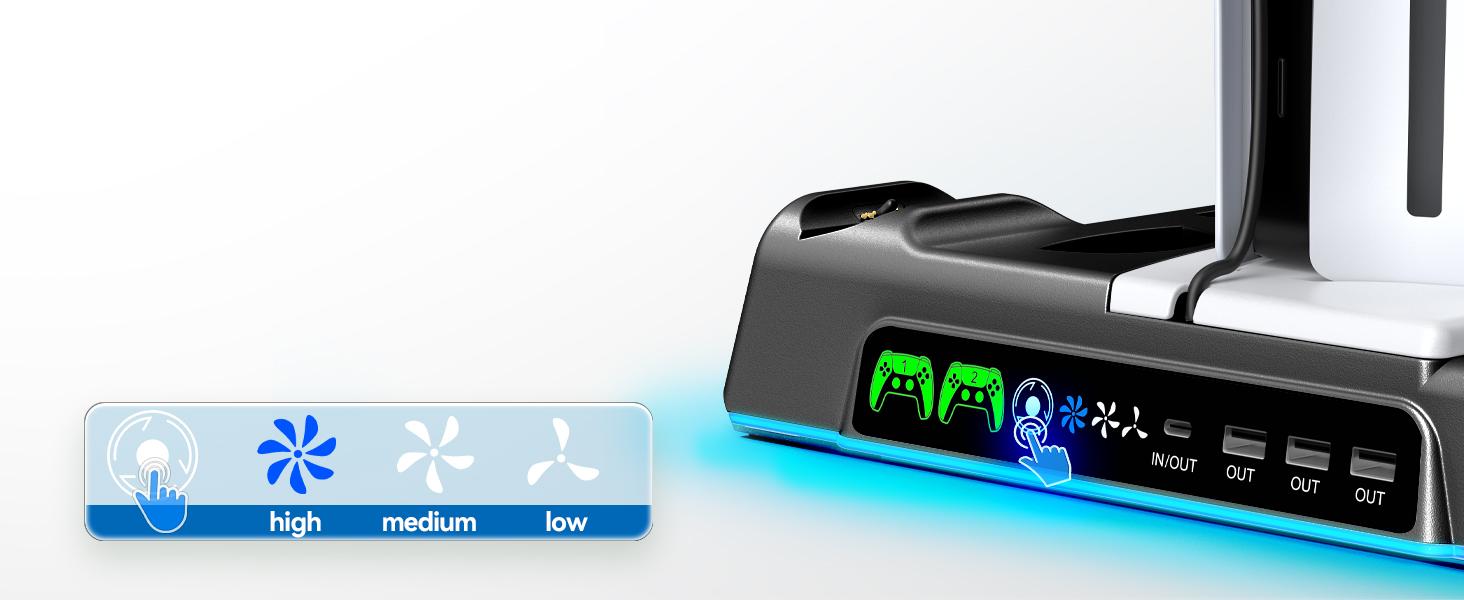
Image: Demonstrates the touch control for fan speed adjustment on the stand.
USB Hub Usage:
The integrated USB hub allows you to connect and charge additional devices such as smartphones, other controllers, or external hard drives. It also supports data transmission for compatible devices.
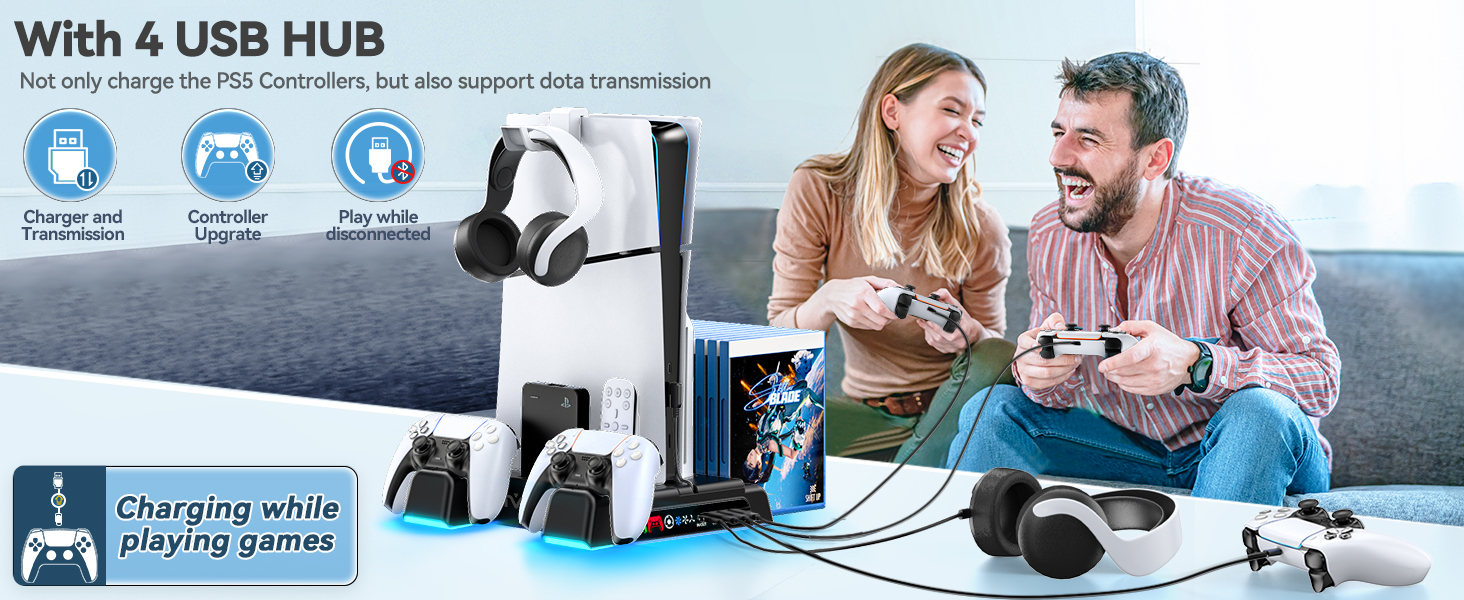
Image: Illustration of the USB hub's functionality for charging and data transfer.
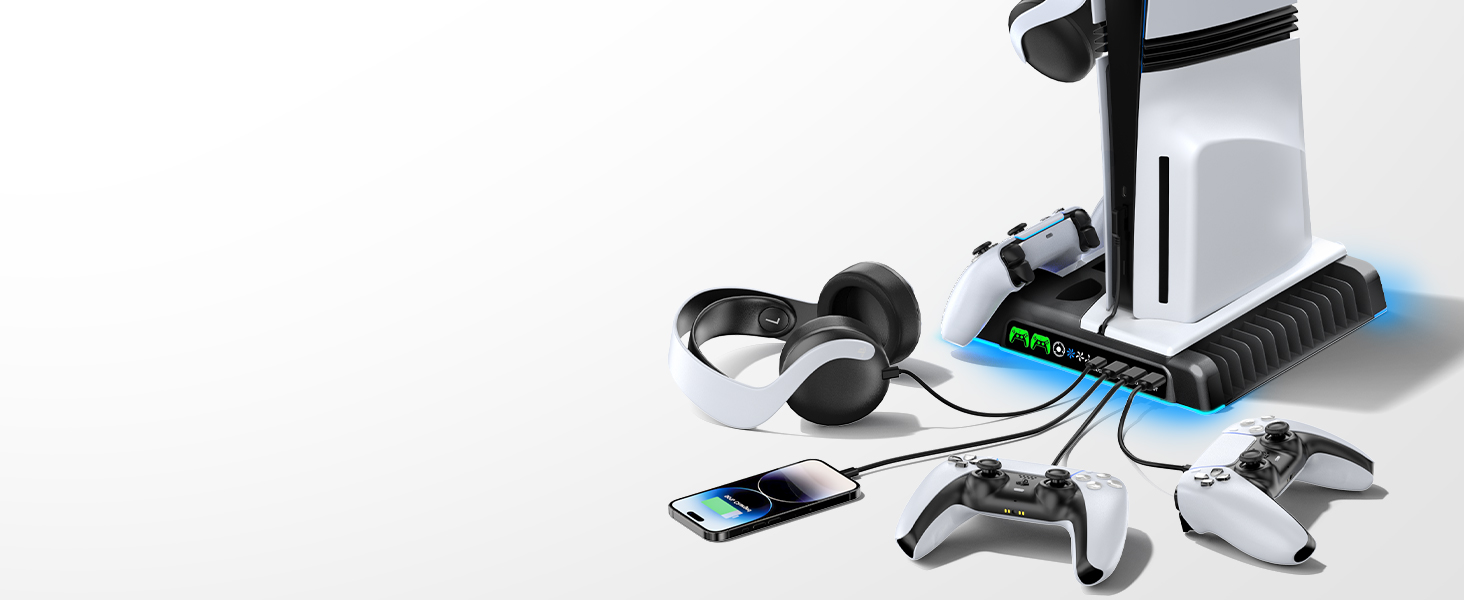
Image: The stand simultaneously charging multiple devices, including PS5 controllers and a smartphone.
Setting Charging & Cooling in Standby Mode:
To enable charging and cooling functions while your PS5 console is in Rest Mode, adjust the console settings:
- Nenda kwa Mipangilio kwenye PS5 yako.
- Chagua Mfumo.
- Chagua Kuokoa Nguvu.
- Chagua Features Available in Rest Mode.
- Hakikisha Supply Power to USB Ports imewekwa kwa Daima.
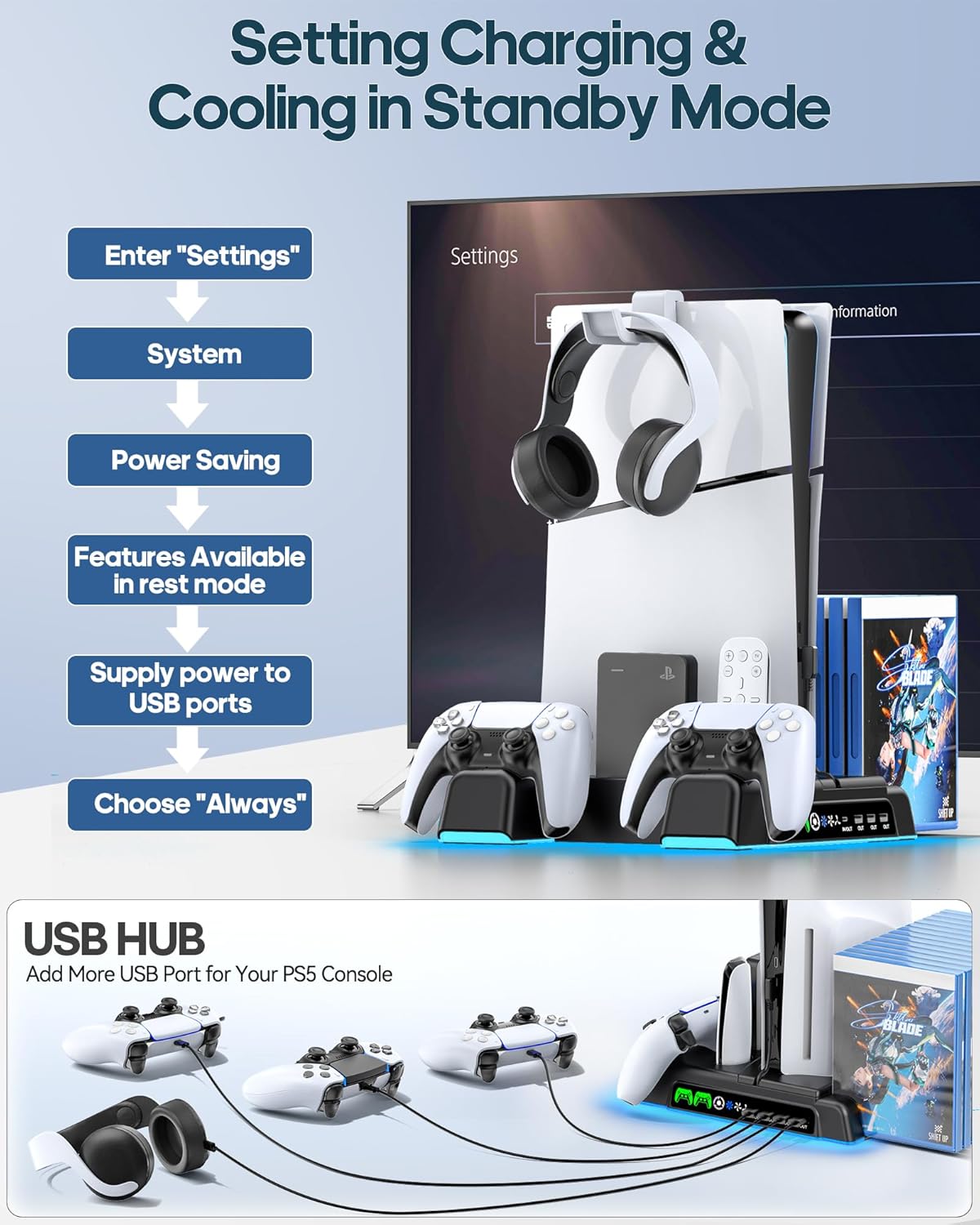
Image: Visual guide for configuring PS5 settings to allow the stand's features to operate in Rest Mode.
Matengenezo
- Kusafisha: Use a soft, dry cloth to wipe down the stand and charging docks. Avoid using abrasive cleaners or solvents.
- Mtiririko wa hewa: Ensure the fan vents on the stand and your PS5 console are clear of dust and obstructions for optimal cooling performance.
- Usimamizi wa Cable: Weka nyaya zikiwa zimepangwa vizuri ili kuzuia uharibifu na kudumisha usanidi nadhifu.
Kutatua matatizo
- Cooling Fan Not Working:
- Ensure the Type-C power cable is securely connected to both the stand and the PS5 console's front USB-C port.
- Press the fan control touch button to cycle through speeds or turn it on.
- Verify that the PS5 console's 'Supply Power to USB Ports' setting is set to 'Always' if you want cooling in Rest Mode.
- Vidhibiti Visivyochaji:
- Ensure controllers are correctly seated in the charging docks. The LED indicator should turn red.
- Check the Type-C power cable connection.
- Confirm the PS5 console's 'Supply Power to USB Ports' setting is set to 'Always' for charging in Rest Mode.
- Console Not Stable:
- Ensure the correct customized panel for your PS5 model is used.
- Verify the fixed screw is securely tightened to the console base.
Vipimo
| Nambari ya Mfano | IV-P5235 |
| Consoles Sambamba | PS5 (Disc/Digital), PS5 Slim (CFI-2000A01, CFI-2000B01), PS5 Pro (CFI-7019B01X) |
| Kasi ya Kupoa ya Shabiki | 3 Levels (High, Medium, Low) |
| Controller Charging Time | Approx. 2 hours for dual controllers |
| Bandari za USB | 3 x USB-A (Output), 1 x USB-C (Input/Output) |
| Ingizo la Nguvu | 5V/3A (via PS5 USB-C port) |
| Uwezo wa Kuhifadhi | 14 Game Discs, Headset, Media Remote/Hard Drive |
| Vipengele vya Usalama | Overcharging, Overheating, Overvoltage, Ulinzi wa Mzunguko Mfupi |
Udhamini na Msaada
For warranty information or technical support, please refer to the contact details provided on the product packaging or visit the official OIVO webtovuti. Weka risiti yako ya ununuzi kama dhibitisho la ununuzi kwa madai yoyote ya udhamini.
Video za Bidhaa
Video: Demonstrating the OIVO PS5/Slim/Pro Stand and Cooling Station, highlighting its features and how it integrates with the console and accessories.