
1. Bidhaa Imeishaview
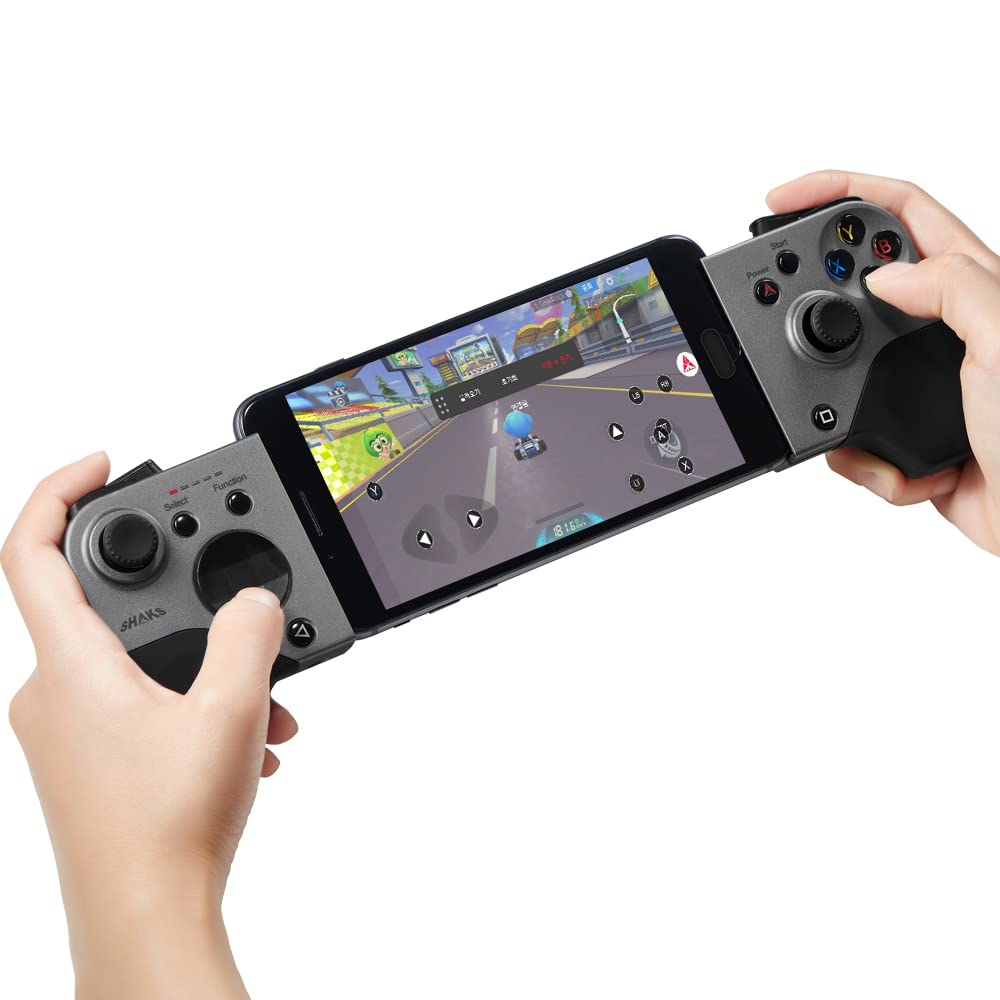
The SHAKS S5b is a versatile wireless gamepad controller designed for a wide range of gaming platforms. It offers ultra-low latency connectivity, dual haptic vibration, and extensive compatibility, enhancing your mobile and PC gaming experience.
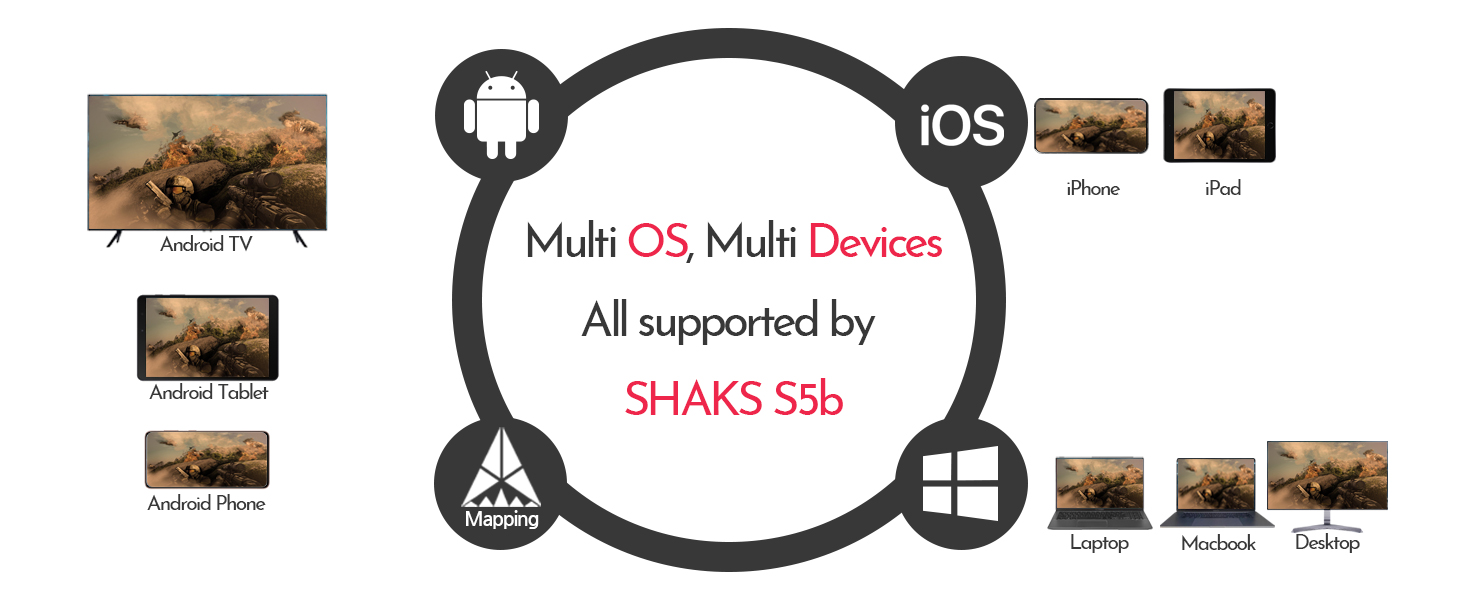
Image: The SHAKS S5b gamepad with a smartphone securely mounted, ready for gaming.
2. Yaliyomo kwenye Kifurushi
- SHAKS S5b Wireless Gamepad Controller
- Kebo ya Kuchaji ya USB
- Portable Carry Pouch
- Circle-type D-pad (replaceable)
- Mwongozo wa Maagizo (hati hii)

Image: The SHAKS S5b gamepad box, indicating typical packaging.
3. Mchoro wa Bidhaa
Picha: Juu view of the SHAKS S5b gamepad, highlighting the left and right control sections with joysticks, D-pad, and action buttons.

Picha: Upande view of the SHAKS S5b gamepad, illustrating the placement of the L1/R1 bumpers and L2/R2 triggers.

Image: The SHAKS S5b gamepad with red circles indicating the location of the dual haptic vibration motors within the grips.
4. Kuweka na Kuunganisha
4.1. Washa/Zima
To power on the gamepad, slide the mode select switch to your desired operating system (Android, Windows, iOS). To power off, slide the switch to the 'Off' position.
4.2. Kuoanisha Bluetooth
- Hakikisha gamepadi imezimwa.
- Select the correct operating system mode using the slide switch on the left side of the gamepad.
- Press the Bluetooth (BT) key on the gamepad to initiate pairing mode. The LED indicators will flash.
- On your device (phone, tablet, PC), go to Bluetooth settings and search for "SHAKS S5b" (or similar ID).
- Select the gamepad to pair. Once successfully paired, the gamepad will vibrate, and the corresponding LED will remain solid.
Kumbuka: If switching between different devices or operating systems, you may need to delete previous pairings from your device's Bluetooth settings and re-pair.
Video: A tutorial demonstrating the Bluetooth pairing process for SHAKS S2i, S3i, and S5b gamepads across different devices.
4.3. Muunganisho wa Waya
For wired connection, power off the S5b. While pressing the Bluetooth key, connect the USB cable for power booting. iOS is not supported via wired connection.
5. Operating Modes and Compatibility
The SHAKS S5b supports various operating systems and platforms:
- Android: Compatible with Android phones, Firestick, Fire TV, Chromecast, and Android TV Box.
- Windows: Compatible with Windows PC, Notebook, and Chromebook. No additional drivers are needed for Windows 10.
- MacOS: Compatible with Mac PC (Catalina, Big Sur).
- iOS: Compatible with iPhone, iPad, and Apple TV.
The S5b is also compatible with advanced streaming platforms such as Stadia, X-Cloud, Geforce Now, Magenta Gaming, and GameBox.

Image: A circular diagram illustrating the SHAKS S5b's compatibility with Android, iOS, Windows, and Mac OS devices, including phones, tablets, laptops, and TVs.
6. SHAKS GameHub Application
The SHAKS GameHub app (Android only) enhances your gaming experience with advanced customization and mapping features.
6.1. Pakua na Usakinishaji
Download the "SHAKS GameHub" application from the Google Play Store. Ensure you allow necessary permissions for the app to function correctly, especially "Draw over other apps" for mapping features.

Image: A screenshot showing the SHAKS GameHub application available for download on the Google Play Store.
6.2. Key Mapping and Customization (Android Only)
The GameHub app allows you to map touchscreen controls to gamepad buttons for games that do not natively support controllers. You can adjust speed, sensitivity, and calibration. Advanced features include:
- Hali ya Sniper: Adjust stick sensitivity for precise aiming.
- Kazi ya Turbo: Enable rapid-fire for specific buttons.
- Kipengele cha Panya: Use the joystick to navigate the screen like a mouse.
- Self Key Testing: Test each button and key for functionality.
Video: A demonstration of how to use the SHAKS S5b for playing touch-only games through mapping, showcasing the in-app customization options.
Video: A detailed guide on setting up the SHAKS S5b and using the SHAKS GameHub companion app for advanced features and mapping.
6.3. Sasisho la Firmware
The GameHub app allows for firmware updates (FoTA FW Upgrade) to ensure your gamepad always has the latest features and improvements.
6.4. Sleep Time and LED Brightness
Customize the gamepad's sleep timer and adjust LED brightness through the GameHub app settings.
7. Utatuzi wa shida
7.1. Masuala ya Muunganisho
If you experience connection problems:
- Press and hold the Bluetooth (BT) key on the gamepad for 6 seconds to delete the stored profile.
- On your device's Bluetooth settings, delete any previously paired SHAKS S5b profiles.
- Wait 3 minutes for the device's memory to refresh.
- Re-pair the gamepad following the Bluetooth Pairing instructions (Section 4.2).
8. Vipimo
| Nambari ya Mfano | S5b |
| Vipimo vya Bidhaa | Inchi 5.31 x 3.54 x 1.38 |
| Uzito wa Kipengee | 10.6 wakia |
| Betri | Betri 1 ya Lithium Ion (imejumuishwa) |
| Maisha ya Betri | Up to 8 hours of uninterrupted gameplay on a 1-hour charge |
| Mtengenezaji | AKSys Co., Ltd. |
| Muunganisho | Bluetooth, Inayotumia Waya (USB) |
| Kuchelewa | 14ms range (powered by Qualcomm Technologies) |
9. Taarifa za Usalama
- Usiweke kifaa kwenye joto kali au unyevunyevu.
- Epuka kuangusha au kuelekeza kifaa kwenye athari kali.
- Weka mbali na watoto.
- Usijaribu kutenganisha au kurekebisha kifaa.
- Tumia kebo iliyotolewa tu ya kuchaji au kitu sawia kilichoidhinishwa.
10. Udhamini na Msaada
For warranty information, technical support, or any questions regarding your SHAKS S5b controller, please refer to the official SHAKS website or contact customer support through the Amazon Q&A section.
Video: An introductory video demonstrating the features, connection methods, and application of the SHAKS S5b gamepad.