
1. Bidhaa Imeishaview
The TP-Link Archer T4U Plus is an AC1300 Dual Band Wireless USB Adapter designed to provide high-speed Wi-Fi connectivity for desktop computers. It supports the 802.11ac Wi-Fi standard, offering speeds of up to 867 Mbps on the 5 GHz band and 400 Mbps on the 2.4 GHz band. Equipped with dual high-gain antennas and a USB 3.0 interface, it aims to enhance wireless range and data transfer efficiency.

The TP-Link Archer T4U Plus USB WiFi Adapter, featuring two high-gain antennas and a USB 3.0 cable for connection to a computer.
2. Yaliyomo kwenye Kifurushi
Thibitisha kuwa kifurushi chako kina vitu vifuatavyo:
- AC1300 Dual Antennas High-Gain Wireless USB Adapter (Archer T4U Plus)
- 1-meter USB 3.0 Cable
- Mwongozo wa Ufungaji wa Haraka
- Resource CD (for drivers)
3. Maagizo ya Kuweka
3.1 Ufungaji wa vifaa
- Fungua Adapta: Carefully remove the Archer T4U Plus adapter and its USB cable from the packaging.
- Unganisha kebo ya USB: Connect one end of the provided 1-meter USB 3.0 cable to the USB 3.0 port on the Archer T4U Plus adapter.
- Unganisha kwa Kompyuta: Plug the other end of the USB 3.0 cable into an available USB 3.0 port on your desktop computer. For optimal performance, use a USB 3.0 port (typically blue inside).
- Weka Adapta: Place the adapter in a location that allows for good signal reception, ideally away from obstructions. The adjustable antennas can be rotated and angled for best performance.

The Archer T4U Plus adapter shown connected to a USB port via its included cable, illustrating its desktop placement.
3.2 Ufungaji wa Dereva
The Archer T4U Plus requires drivers to function correctly. Drivers can be installed via the included Resource CD or by downloading them from the TP-Link webtovuti.
For Windows Operating Systems (Windows 11/10/8.1/8/7/XP):
- Kwa kutumia CD ya Rasilimali: Insert the Resource CD into your computer's CD-ROM drive. Follow the on-screen instructions to install the drivers.
- Inapakua kutoka TP-Link Webtovuti: If your computer lacks a CD-ROM drive, visit the official TP-Link support website, search for "Archer T4U Plus", and download the latest drivers for your specific Windows version. Run the downloaded installer and follow the prompts.
- Automatic Installation (Windows 10/11): In some cases, Windows 10 or 11 may automatically detect and install the necessary drivers upon connecting the adapter. Verify installation in Device Manager under "Network Adapters".
For Mac OS (10.15 and earlier):
- Inapakua kutoka TP-Link Webtovuti: Tembelea usaidizi rasmi wa TP-Link website, search for "Archer T4U Plus", and download the latest drivers for your Mac OS version.
- Sakinisha Viendeshaji: Fungua iliyopakuliwa file and follow the installation instructions. You may need to restart your computer after installation.
4. Maagizo ya Uendeshaji
4.1 Kuunganisha kwa Mtandao Usiotumia Waya
Once the drivers are successfully installed, you can connect to a Wi-Fi network:
- Fikia Mipangilio ya Mtandao:
- Windows: Bofya ikoni ya Wi-Fi kwenye trei ya mfumo (kona ya chini kulia ya skrini).
- MacOS: Bonyeza aikoni ya Wi-Fi kwenye upau wa menyu (kona ya juu kulia ya skrini).
- Chagua Mtandao: Orodha ya mitandao isiyo na waya inayopatikana itaonekana. Chagua mtandao unaotaka (SSID).
- Weka Nenosiri: If prompted, enter the Wi-Fi password (security key) for your network.
- Unganisha: Bofya "Unganisha" ili kuanzisha muunganisho wa wireless.
4.2 Uendeshaji wa Bendi Mbili
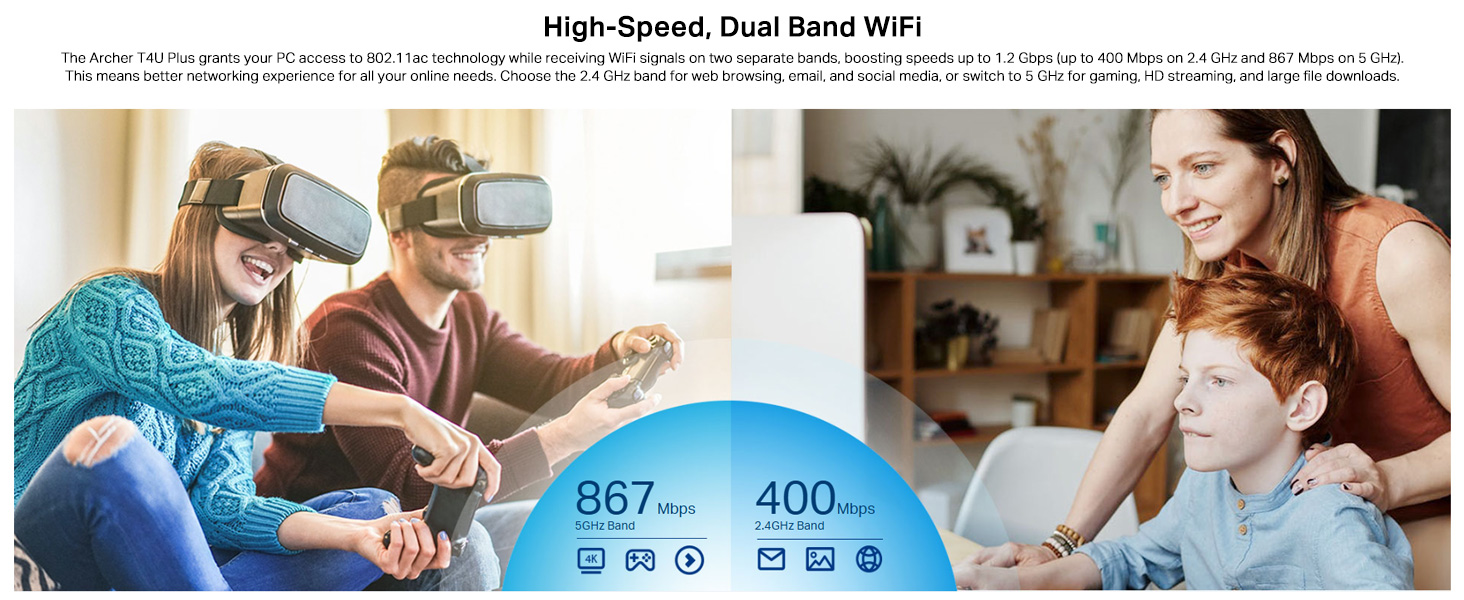
The Archer T4U Plus supports both 2.4 GHz and 5 GHz Wi-Fi bands. You can choose the band that best suits your needs:
- Bendi ya GHz 2.4: Offers broader coverage and better penetration through walls, suitable for general internet use like web kuvinjari na barua pepe.
- Bendi ya GHz 5: Provides faster speeds and less interference, ideal for bandwidth-intensive activities such as online gaming, HD video streaming, and large file uhamisho.
Your router may broadcast separate SSIDs for each band (e.g., "MyWiFi_2.4GHz" and "MyWiFi_5GHz"). Select the appropriate network from the available list.

An image illustrating the dual-band capabilities of the adapter, showing 867 Mbps on the 5GHz band for activities like 4K streaming and gaming, and 400 Mbps on the 2.4GHz band for web kuvinjari na barua pepe.
4.3 Enhanced Coverage and MU-MIMO
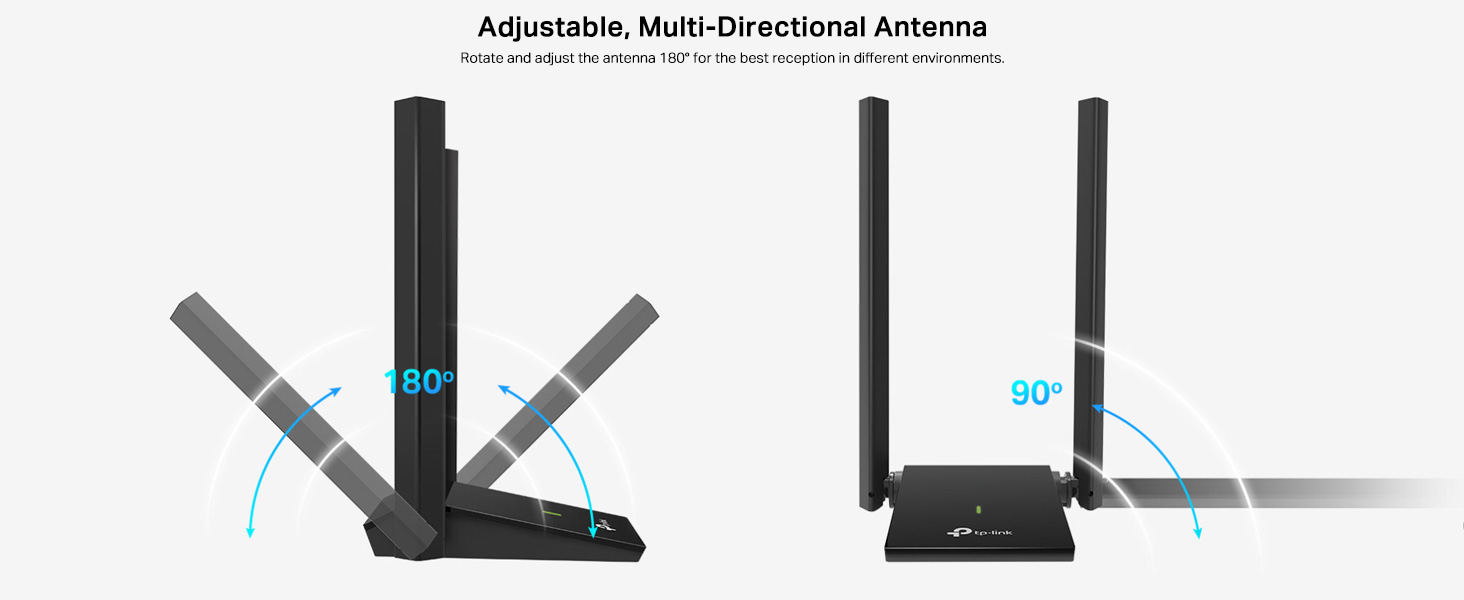
The dual high-gain antennas are designed to improve signal transmission and reception, extending your wireless coverage. For optimal performance, adjust the antennas to point towards your wireless router.
Illustrates the flexibility of the adapter's antennas, which can be rotated 180 degrees and adjusted 90 degrees for optimal signal reception.
The adapter also supports MU-MIMO technology. When used with a compatible MU-MIMO router, this technology allows the adapter to communicate with multiple devices simultaneously, improving network throughput and efficiency.
A visual representation of MU-MIMO technology, showing how the Archer T4U Plus adapter, when paired with a compatible router, can communicate with multiple devices simultaneously for improved network efficiency.
5. Matengenezo
- Sasisha Viendeshaji: Angalia usaidizi wa TP-Link mara kwa mara webtovuti kwa viendeshi vya hivi karibuni ili kuhakikisha utendakazi bora na utangamano.
- Safisha Kifaa: Tumia kitambaa laini na kikavu kusafisha adapta. Epuka kutumia visafishaji vya kioevu au miyeyusho.
- Uwekaji Sahihi: Ensure the adapter is placed in a well-ventilated area and not covered, to prevent overheating.
- Muunganisho Salama: Ensure the USB cable is securely connected to both the adapter and your computer to prevent intermittent disconnections.
6. Utatuzi wa shida
- Hakuna Muunganisho wa Wi-Fi:
- Hakikisha kuwa adapta imeunganishwa vizuri kwenye mlango wa USB.
- Verify that the drivers are correctly installed. Check Device Manager (Windows) or System Information (Mac OS) for the adapter's status.
- Anzisha tena kompyuta yako na kipanga njia.
- Jaribu kuunganisha kwenye mlango tofauti wa USB.
- Kasi ya polepole ya Wi-Fi:
- Ensure you are connected to the 5 GHz band if available and your router supports it, for faster speeds.
- Adjust the adapter's antennas for better signal reception.
- Punguza vizuizi vya kimwili kati ya adapta na kipanga njia chako.
- Angalia kama vifaa vingine haviingiliwi (km, maikrowevi, simu zisizotumia waya).
- Sasisha viendeshi vya adapta yako hadi toleo jipya zaidi.
- Miunganisho ya Mara kwa Mara:
- Hakikisha kuwa kebo ya USB haijalegea.
- Jaribu mlango tofauti wa USB, ikiwezekana mlango wa USB 3.0.
- Angalia madereva yaliyosasishwa.
- Ensure the adapter is not overheating.
- Masuala ya Ufungaji wa Dereva:
- Disable any antivirus or firewall software temporarily during installation.
- Download drivers directly from the official TP-Link website for your specific operating system.
- For Linux users, specific driver installation steps may be required, often involving command-line instructions. Refer to community forums or TP-Link's support for detailed guidance.
7. Vipimo
| Kipengele | Maelezo |
|---|---|
| Chapa | Kiungo cha TP |
| Nambari ya Mfano | Archer T4U Plus |
| Kiunzi cha vifaa | USB 3.0 |
| Kiwango kisicho na waya | 802.11ac |
| Kiwango cha Uhamisho wa Data | 1300 Mbps (867 Mbps on 5GHz, 400 Mbps on 2.4GHz) |
| Antena | Dual High-Gain 5dBi Antennas |
| Mifumo ya Uendeshaji | Windows 11/10/8.1/8/7/XP, Mac OS 10.15 and earlier |
| Vipimo (L x W x H) | 8.4L x 15.6W x Sentimita 1.9H |
| Uzito wa Kipengee | Gramu 100 |
| Rangi | Nyeusi |
8. Udhamini na Msaada wa Kiufundi
8.1 Taarifa ya Udhamini
Bidhaa hii inakuja na a Udhamini wa mtengenezaji wa mwaka 3. Tafadhali hifadhi uthibitisho wako wa ununuzi kwa madai ya udhamini.
8.2 Msaada wa Kiufundi
For technical assistance, driver downloads, or further inquiries, please contact TP-Link support:
- TP-Link India Private Limited
- Anwani: Green Industrial Park, Dongri Pada, Poman, Kaman-Bhiwandi Road, Vasai East, Palghar, Maharashtra – 401208
- Mawasiliano Bila Malipo: 1800 2094 168
- Barua pepe ya Usaidizi: support.in@tp-link.com
- Mtengenezaji: TP-Link Corporation, South Building, No.5 Keyuan Road, Central Zone, Science & Technology Park, Nanshan, Shenzhen, P.R. China
For the most up-to-date support information and resources, please visit the official TP-Link webtovuti.