
1. Utangulizi
This manual provides essential instructions for the safe and efficient use of your Eboxer Portable 4G LTE Mobile Hotspot MF901. Please read this manual thoroughly before operating the device and retain it for future reference.
2. Bidhaa Imeishaview
The Eboxer Portable 4G LTE Mobile Hotspot MF901 is a compact device designed to provide high-speed 3G/4G internet access for multiple devices. Its portable design makes it suitable for travel and home use.

Kielelezo 2.1: Mbele view of the Eboxer Portable 4G LTE Mobile Hotspot MF901.
Sifa Muhimu:
- 4G LTE high-speed internet connectivity (up to 150Mbps download).
- Supports connection for up to 10 smart devices simultaneously.
- Wide global coverage, supporting major 3G/4G frequency bands.
- Visual screen interface for easy status checks (data usage, battery, signal).
- USB charging compatibility with various power sources.
- Integrated Micro SD card slot for storage expansion.
3. Kuweka
3.1. Ufungaji wa Betri na SIM Kadi
To begin using your hotspot, install the battery and a compatible Micro SIM card.
- Ondoa kwa uangalifu kifuniko cha nyuma cha kifaa.
- Insert the provided Lithium-Ion battery into its compartment, ensuring proper alignment of the contacts.
- Locate the Micro SIM card slot. Gently slide your Micro SIM card into the slot until it clicks into place. Ensure the card is oriented correctly as indicated by the diagram on the device.
- If desired, insert a Micro SD card into the designated slot for additional storage.
- Badilisha kifuniko cha nyuma, uhakikishe kuwa kimefungwa vizuri.

Kielelezo 3.1: Ndani view with battery and SIM/SD card slots.
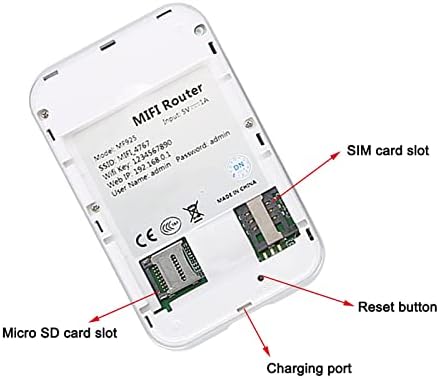
Kielelezo 3.2: Kina view of card slots and ports.
Video 3.1: Demonstration of unboxing, battery, and SIM card installation.
3.2. Kuchaji Kifaa
Before first use, fully charge the device. Use the provided USB charging cable.
- Connect the USB-C end of the charging cable to the charging port on the side of the hotspot.
- Connect the USB-A end of the cable to a powered USB source (e.g., computer, wall adapter, power bank).
- The battery indicator on the device will illuminate or flash to show charging status. A full charge is indicated when the light becomes solid or the screen shows 100%.

Figure 3.3: USB charging port and battery indicator.
Video 3.2: Demonstration of connecting the charging cable and observing charging indicators.
3.3. Kuwasha Kifaa
Once the battery and SIM card are installed, and the device is charged, you can power it on.
- Press and hold the power button (usually marked with an 'IO' symbol) on the device for approximately 2-3 seconds.
- The device screen will light up, displaying a welcome message and then status icons for battery, signal strength, and Wi-Fi.
- Wait for the cellular and Wi-Fi indicators to stabilize, indicating a successful connection to the network and Wi-Fi availability.
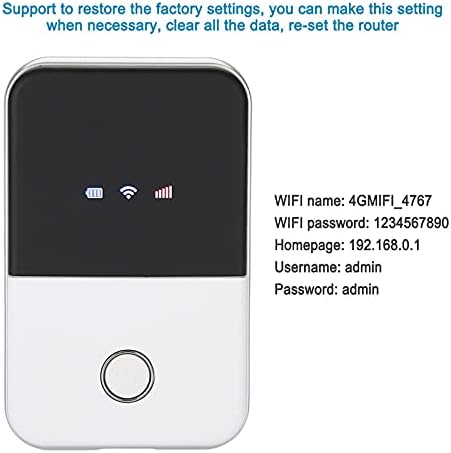
Figure 3.4: Hotspot screen displaying Wi-Fi name and password.
Video 3.3: Demonstration of powering on the device and observing connection indicators.
4. Maagizo ya Uendeshaji
4.1. Connecting Devices to Wi-Fi
Your Eboxer hotspot can provide Wi-Fi to up to 10 devices simultaneously.
- Kwenye kifaa chako kinachotumia Wi-Fi (simu mahiri, kompyuta kibao, kompyuta ya mkononi), fungua mipangilio ya Wi-Fi.
- Tafuta available networks. The SSID (Wi-Fi name) of your hotspot will be displayed on its screen.
- Select your hotspot's SSID from the list.
- Enter the Wi-Fi password (key) displayed on the hotspot's screen.
- Kifaa chako sasa kinapaswa kuunganishwa kwenye mtandao kupitia mtandao-hewa.
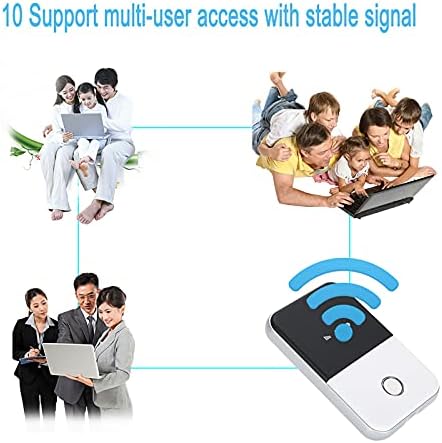
Figure 4.1: Multi-user access via the hotspot.
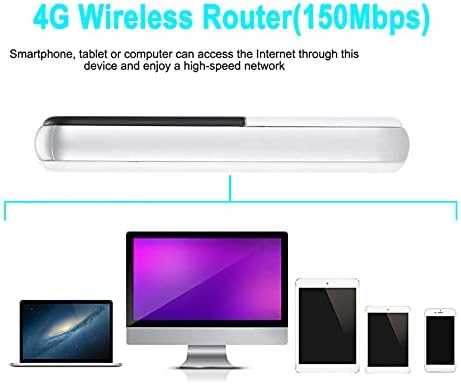
Figure 4.2: The 4G Wireless Router connecting to multiple devices.
4.2. Accessing the Admin Panel
To manage advanced settings, such as changing the Wi-Fi name or password, or checking data usage, access the admin panel.
- Ensure your device is connected to the hotspot's Wi-Fi network.
- Fungua a web kivinjari kwenye kifaa chako kilichounganishwa.
- Kwenye upau wa anwani, andika anwani chaguo-msingi ya IP: 192.168.0.1 na bonyeza Enter.
- You will be prompted to enter a username and password. The default credentials are typically 'admin' for both username and password. Refer to the device screen or included documentation for specific default credentials.
- Once logged in, you can configure various settings for your hotspot.
5. Matengenezo
- Weka kifaa safi na bila vumbi na unyevu. Tumia kitambaa laini na kavu kwa kusafisha.
- Epuka kuhatarisha kifaa kwenye joto kali, jua moja kwa moja, au unyevu mwingi.
- Usijaribu kutenganisha au kutengeneza kifaa mwenyewe, kwani hii itabatilisha udhamini.
- Hifadhi kifaa mahali pa baridi, kavu wakati haitumiki.
6. Utatuzi wa shida
If you encounter issues with your Eboxer Portable 4G LTE Mobile Hotspot, refer to the following common solutions:
- Kifaa hakiwashi: Ensure the battery is correctly installed and fully charged. Press and hold the power button for a few seconds.
- No cellular signal: Check if the SIM card is properly inserted and activated. Ensure you are within an area with 3G/4G network coverage. Restart the device.
- Haiwezi kuunganisha kwa Wi-Fi: Verify that the Wi-Fi function on the hotspot is enabled. Double-check the Wi-Fi name (SSID) and password. Try restarting both the hotspot and the connecting device.
- Kasi ya polepole ya mtandao: Check your cellular signal strength on the hotspot's screen. Reduce the number of connected devices. Ensure your data plan is active and has sufficient allowance.
- Kiwanda Rudisha: If problems persist, you may perform a factory reset. Locate the reset button (often a small pinhole, see Figure 3.2) and use a pin to press and hold it for about 5-10 seconds while the device is powered on. This will restore all settings to their default values.
7. Vipimo
| Jina la Mfano | MF901 |
| Vipimo vya Bidhaa | Inchi 3.86 x 2.36 x 0.59 |
| Uzito wa Kipengee | Wakia 5.3 (Kilo 0.15) |
| Betri | Betri 1 ya Lithium Ion inahitajika (imejumuishwa) |
| Teknolojia ya Uunganisho | Wi-Fi, 4G LTE, 3G, USB |
| Kiwango cha Mawasiliano isiyo na waya | 802.11b |
| Vifaa Sambamba | Smartphone, Kompyuta Kibao |
| Aina ya Antena | Ndani |
| Mtengenezaji | ASHATA |
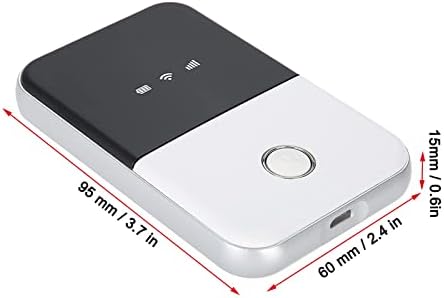
Mchoro 7.1: Vipimo vya kifaa.
8. Udhamini na Msaada
Specific warranty information for the Eboxer Portable 4G LTE Mobile Hotspot MF901 is not provided in the product details. For warranty claims, technical support, or further assistance, please contact the seller or manufacturer directly through their official support channels.