
1. Utangulizi
This manual provides detailed instructions for the installation, configuration, and operation of your iBall 300M WRB300N MIMO Wireless-N Router. Please read this manual thoroughly before using the device to ensure proper setup and optimal performance.
The iBall WRB300N is a high-performance wireless router designed for home and small office use. It complies with IEEE 802.11b/g/n standards, offering wireless speeds up to 300Mbps. It supports various connection types including PPPoE, Dynamic IP, and Static IP, and features robust security protocols such as WEP, WPA, and WPA2-PSK, along with WPS for easy secure connections.
2. Yaliyomo kwenye Kifurushi
Thibitisha kuwa kifurushi chako kina vitu vifuatavyo:
- iBall 300M WRB300N Wireless-N Router
- Adapta ya Nguvu
- Kebo ya Ethernet
- Mwongozo wa Ufungaji wa Haraka (ikiwa umejumuishwa)
- Resource CD (if included)
If any item is missing or damaged, please contact iBall customer support.
3. Kimwili Zaidiview
Jitambulishe na bandari na viashiria kwenye kipanga njia chako.

Kielelezo 3.1: Mbele view of the iBall 300M WRB300N Wireless-N Router, showing the device with two external antennas and indicator lights on the front panel.
The front panel typically features LED indicators for Power, WAN, LAN (1-4), and WLAN. The rear panel includes the Power input, Power On/Off switch, WAN port, and four LAN ports.
4. Maagizo ya Kuweka
4.1. Uunganisho wa vifaa
Fuata hatua hizi ili kuunganisha kipanga njia chako:
- Ensure your modem (if applicable) is powered off.
- Connect one end of the Ethernet cable to the WAN port on the iBall router and the other end to your modem's Ethernet port or directly to your internet service provider's (ISP) wall jack.
- Unganisha adapta ya umeme kwenye ingizo la umeme la kipanga njia na uichomeke kwenye soketi ya umeme.
- Press the Power On/Off switch to turn on the router.
- Wait for the Power and WAN LEDs to stabilize, indicating a successful connection.
- For wired connections, connect an Ethernet cable from one of the router's LAN ports to your computer's network adapter.
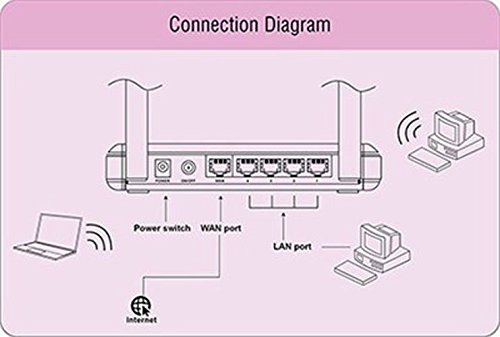
Figure 4.1: Diagram illustrating the connection points on the rear of the iBall WRB300N router, showing connections for power, WAN port to internet, and LAN ports to wired devices, alongside wireless connections to laptops and desktops.
4.2. Usanidi wa Awali (Web Kiolesura)
To configure your router, access its web-kiolesura cha usimamizi:
- Fungua a web browser (e.g., Chrome, Firefox, Edge) on a computer connected to the router (either wired or wirelessly).
- In the address bar, type the router's default IP address (commonly
192.168.1.1or192.168.0.1) and press Enter. Refer to the router's label or quick installation guide for the exact IP address. - Enter the default username and password when prompted. (Common defaults are
adminkwa jina la mtumiaji na nywila). - Follow the on-screen Quick Setup Wizard to configure your internet connection type (PPPoE, Dynamic IP, or Static IP) and wireless network settings (SSID and password).
- Hifadhi mipangilio yako na uanze tena kipanga njia ikiwa umeombwa.
5. Maagizo ya Uendeshaji
5.1. Wireless Security Configuration
It is crucial to secure your wireless network to prevent unauthorized access. The iBall WRB300N supports WEP, WPA, and WPA2-PSK encryption.
- Ingia kwenye router web kiolesura cha usimamizi.
- Navigate to the "Wireless" or "Wireless Security" section.
- Select WPA2-PSK as the security mode for the strongest encryption.
- Enter a strong password (Pre-Shared Key) of at least 8 characters, combining letters, numbers, and symbols.
- Save the settings. All wireless devices will need to be reconnected using the new password.
5.2. WPS (Usanidi Unaolindwa na Wi-Fi)
WPS allows for easy and secure connection of wireless devices without manually entering the password.
- Using the WPS Button: Press the WPS button on your router (usually located on the rear or side panel). Within two minutes, press the WPS button on your wireless client device. The devices will automatically establish a secure connection.
- Using PIN: Some devices may require you to enter a PIN from the router into the client device, or vice-versa, via the router's web kiolesura.
Note: For security reasons, it is recommended to disable WPS after all devices are connected, or use it sparingly.
6. Matengenezo
Matengenezo ya mara kwa mara husaidia kuhakikisha maisha marefu na utendakazi bora wa kipanga njia chako.
- Sasisho za Firmware: Periodically check the iBall website for firmware updates. Updating firmware can improve performance, add features, and fix security vulnerabilities.
- Usafishaji wa Kimwili: Keep the router in a clean, dust-free environment. Ensure ventilation holes are not obstructed.
- Kuanzisha upya: If you experience network issues, a simple restart (power cycling) of the router can often resolve them.
- Usanidi wa Hifadhi nakala: Weka nakala rudufu ya mipangilio ya usanidi wa kipanga njia chako mara kwa mara kupitia faili ya web interface. This allows for quick restoration if a factory reset is needed.
7. Utatuzi wa shida
If you encounter issues with your iBall WRB300N router, refer to the following common troubleshooting steps:
- Hakuna Ufikiaji wa Mtandao:
- Angalia miunganisho yote ya kebo (WAN, LAN, Power).
- Verify that the WAN LED is lit and stable.
- Anzisha tena modem yako na kipanga njia.
- Confirm your internet connection type (PPPoE, Dynamic IP, Static IP) and settings in the router's web kiolesura.
- Contact your ISP to ensure there are no service outages.
- Haiwezi Kufikia Kipanga njia Web Kiolesura:
- Ensure your computer is connected to the router (wired or wirelessly).
- Verify the router's IP address (e.g., 192.168.1.1).
- Jaribu tofauti web kivinjari.
- Zima kwa muda ngome au programu ya kingavirusi kwenye kompyuta yako.
- If you forgot the login credentials, you may need to perform a factory reset (see below).
- Poor Wireless Signal or Disconnections:
- Hamisha kipanga njia hadi katikati, mbali na vizuizi na vyanzo vya kuingilia (km, simu zisizotumia waya, maikrowevu).
- Rekebisha mwelekeo wa antena.
- Check for overlapping Wi-Fi channels from neighboring networks and change your router's channel in the wireless settings.
- Ensure your wireless devices are within range.
- Kiwanda Rudisha: If all else fails, you can restore the router to its factory default settings. Locate the "Reset" button (often a small pinhole button) on the router. With the router powered on, press and hold the Reset button for 5-10 seconds until the LEDs flash. The router will restart with default settings. Warning: This will erase all your custom configurations.
8. Vipimo
| Kipengele | Maelezo |
|---|---|
| Mfano | WRB300N |
| Viwango visivyo na waya | IEEE 802.11b/g/n |
| Viwango vya Ethernet | IEEE 802.3, IEEE 802.3u |
| Kasi isiyo na waya | Hadi 300Mbps |
| Mkanda wa Marudio | GHz 2.4 |
| Antena | External, Dual Antenna Design |
| Bandari | 1x WAN, 4x LAN (10/100Mbps) |
| Internet Connection Types | PPPoE, IP Dynamic, IP tuli |
| Usalama wa Wireless | WEP, WPA, WPA2-PSK |
| Vipengele Maalum | WPS (Usanidi Unaolindwa na Wi-Fi) |
| Vipimo (LxWxH) | 26.2 x 16.6 x 7 cm (takriban.) |
| Uzito | 95 g (takriban.) |
9. Udhamini na Msaada
Your iBall 300M WRB300N MIMO Wireless-N Router comes with a dhamana ya mwaka 3 kuanzia tarehe ya ununuzi.
For technical assistance, warranty claims, or any other queries, please contact iBall Customer Care:
- Nambari ya Huduma kwa Wateja: 186030042255
- Please have your product model number (WRB300N) and proof of purchase ready when contacting support.