
1. Bidhaa Imeishaview
The TP-Link TL-WA750RE is a 150Mbps Universal Wireless Range Extender designed to expand the coverage of an existing wireless network. It eliminates Wi-Fi dead zones by boosting the wireless signal to previously unreachable or hard-to-wire areas. Its compact, wall-mounted design allows for flexible deployment and easy relocation within your home or office.
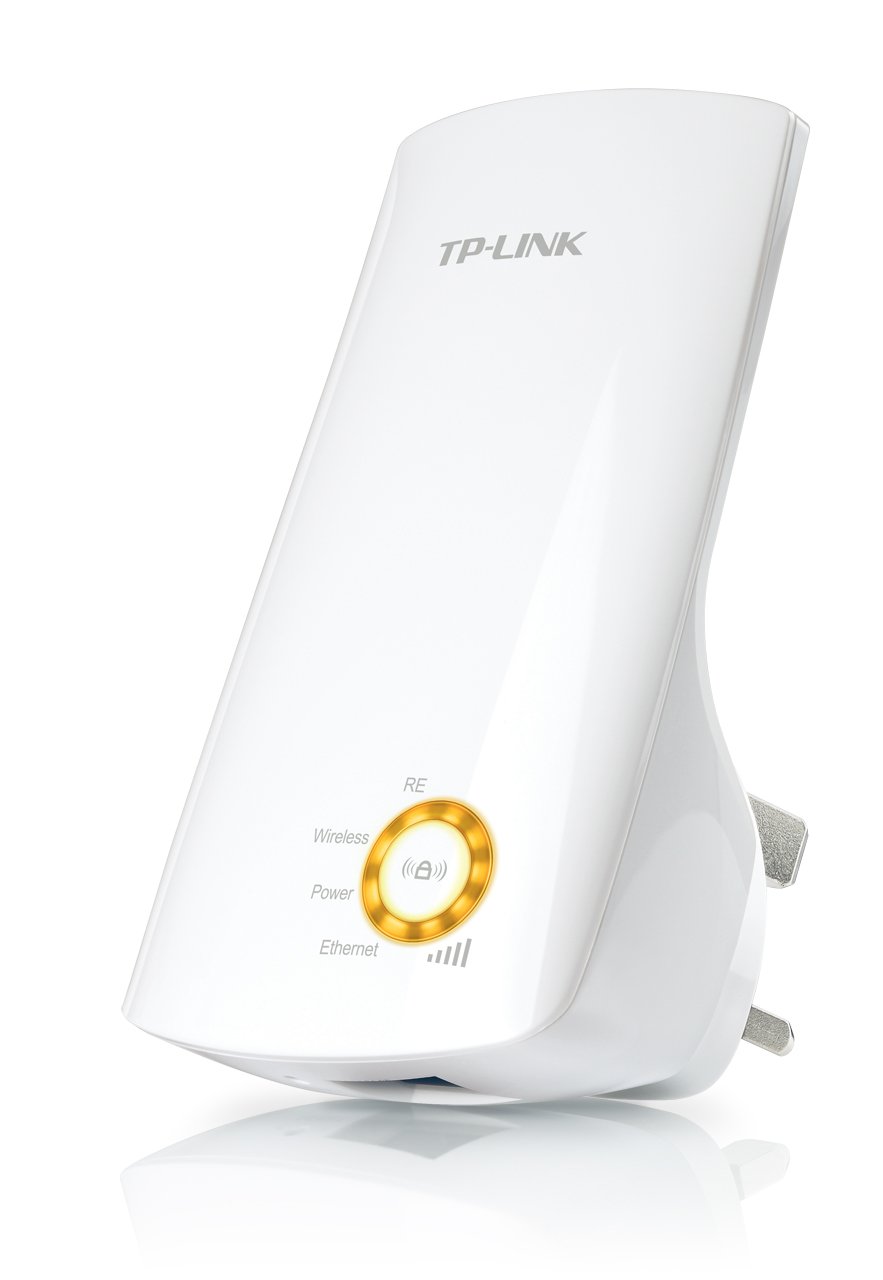
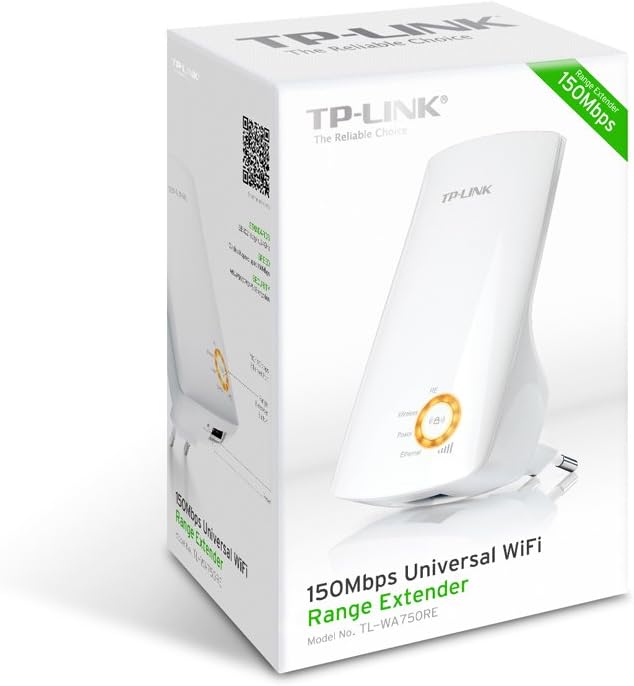
Kielelezo cha 1: TP-Link TL-WA750RE Universal Wireless Range Extender. This image shows the device in its retail packaging, highlighting its compact design and wall-plug form factor.
2. Sifa Muhimu
- Njia ya kupanua anuwai: Boosts wireless signal to eliminate Wi-Fi dead zones and extend network coverage.
- Muundo Kompakt: Small size and wall-mounted design for easy deployment and flexible movement.
- Kitufe cha WPS: Allows for instant setup and secure connection with compatible routers.
- Kiashiria Mahiri cha Mawimbi: Helps users find the optimal location for placing the range extender for best performance.
- Utangamano wa Universal: Works seamlessly with all 802.11n/g/b wireless devices.
3. Yaliyomo kwenye Kifurushi
Kifurushi cha bidhaa kwa kawaida hujumuisha vitu vifuatavyo:
- TP-Link TL-WA750RE 150Mbps Universal Wireless Range Extender
- Mwongozo wa Maagizo
4. Mwongozo wa Kuweka
4.1. Usanidi wa Haraka kwa kutumia Kitufe cha WPS
- Chomeka: Chomeka TL-WA750RE kwenye sehemu ya umeme karibu na kipanga njia chako kisichotumia waya.
- Washa WPS kwenye Kipanga njia: Bonyeza kitufe cha WPS kwenye kipanga njia chako kikuu kisichotumia waya. Rejelea mwongozo wa kipanga njia chako kwa eneo na utaratibu halisi.
- Washa WPS kwenye Extender: Within two minutes, press the WPS button on the TL-WA750RE. The Signal LED on the extender should begin to flash.
- Subiri Muunganisho: The Signal LED will turn solid blue or green when a successful connection is established.
- Hamisha Kiendelezi: Unplug the extender and move it to a location between your router and the Wi-Fi dead zone. Ensure the Signal LED indicates a strong connection (e.g., solid blue or green) in the new location.
4.2. Manual Setup via Web Kivinjari
- Chomeka: Plug the TL-WA750RE into an electrical outlet near your computer.
- Unganisha kwa Extender: Connect your computer to the extender's Wi-Fi network (e.g., "TP-LINK_Extender_XXXXXX"). No password is required initially.
- Ufikiaji Web Kiolesura: Fungua a web kivinjari na aina http://tplinkrepeater.net or the extender's default IP address (usually 192.168.0.254) into the address bar.
- Ingia: Enter "admin" for both the username and password when prompted.
- Fuata Maagizo ya Skrini: Use the Quick Setup wizard to select your main Wi-Fi network and enter its password.
- Hamisha Kiendelezi: Once configured, unplug the extender and move it to an optimal location between your router and the desired coverage area.
Kielelezo cha 2: Upande view of the TL-WA750RE. This image illustrates the physical layout of the device, including the WPS button and Ethernet port, which are crucial for setup and operation.
5. Operating the Range Extender
Once the TL-WA750RE is successfully set up, it will automatically extend your existing Wi-Fi network. Devices within the extended range can connect to the network name created by the extender (e.g., "YourNetworkName_EXT").
5.1. Kiashiria cha Mawimbi Mahiri
The Smart Signal Indicator LEDs on the front of the device provide real-time feedback on the signal strength received from your main router. This helps you determine the best placement for the extender:
- Bluu/Kijani Imara: Excellent signal strength.
- Nyekundu Imara: Weak signal strength. Consider relocating the extender closer to your router.
- Imezimwa: No connection to the main router.
5.2. Ethernet Port Usage
The TL-WA750RE includes an Ethernet port. This port can be used to connect a wired device, such as a desktop computer, gaming console, or smart TV, to your wireless network, providing a stable wired connection in the extended Wi-Fi area.
6. Matengenezo
- Kusafisha: Tumia kitambaa laini na kavu kusafisha kifaa. Usitumie visafishaji vya kioevu au erosoli.
- Uwekaji: Epuka kuweka extender kwenye jua moja kwa moja, karibu na vyanzo vya joto, au katika maeneo yenye unyevu mwingi.
- Sasisho za Firmware: Mara kwa mara angalia afisa wa TP-Link webtovuti kwa sasisho za programu ili kuhakikisha utendaji bora na usalama.
- Mzunguko wa Nguvu: If the device experiences issues, try unplugging it from the power outlet for 10 seconds and then plugging it back in.
7. Utatuzi wa shida
- Q1: What should I do if I cannot access the extender's web ukurasa wa usimamizi?
- A1: Ensure your computer is connected to the extender's network. Verify that http://tplinkrepeater.net is correctly typed in the browser. If issues persist, try using the extender's IP address (e.g., 192.168.0.254) or reset the extender to factory defaults.
- Q2: My extended network has poor signal or frequent disconnections.
- A2: Check the Smart Signal Indicator on the extender. If it's red or off, the extender is too far from your main router. Relocate the extender to a position where the indicator shows a strong signal (solid blue/green). Ensure there are no major obstructions between the router and the extender.
- Q3: How do I reset the extender to factory default settings?
- A3: With the extender powered on, use a pin to press and hold the Reset button (usually a small hole) for approximately 5-10 seconds until all LEDs flash briefly. The extender will then restart with factory default settings.
8. Vipimo
| Chapa | Kiungo cha TP |
| Nambari ya Mfano | TL-WA750RE |
| Kiwango kisicho na waya | 802.11b/g/n |
| Kiwango cha Uhamisho wa Data | 150 Mbps |
| Mzunguko | GHz 2.4 |
| Vipengele Maalum | Smart Signal Indicator, WPS Button |
| Aina ya kiunganishi | RJ45 (Mlango wa Ethaneti) |
| Uzito wa Kipengee | Pauni 0.4 |
| Rangi | Nyeupe |
9. Udhamini na Msaada
9.1. Taarifa za Udhamini
This TP-Link TL-WA750RE device comes with a dhamana ya mwaka 2 kuanzia tarehe ya ununuzi. Tafadhali hifadhi uthibitisho wako wa ununuzi kwa madai ya udhamini. Udhamini hufunika kasoro katika vifaa na utengenezaji chini ya matumizi ya kawaida.
9.2. Msaada wa Kiufundi
For technical assistance, troubleshooting, or further inquiries, please visit the official TP-Link support webtovuti au wasiliana na huduma kwa wateja wao. Unaweza kupata rasilimali za usaidizi wa kina, Maswali Yanayoulizwa Mara kwa Mara, na taarifa za mawasiliano katika www.tp-link.com/support.